
Authentication and scopes
Send your API key in the x-api-key header, put your Brewery ID in every path, and give each key only the scopes its endpoints need. With a first test call.
Every Partner API request carries an API key, and every path names your brewery. This guide shows how the two fit together, which scope each endpoint needs, and how to check a new key works.
What you need
- An API key. Create one on the API Keys page of your admin. The full key is shown once, when you create it. See Manage API keys.
- Your Brewery ID. It's at the top of the same page, with a Copy button.

How a request is authenticated
All endpoints live under https://api.raspberrypints.com/v1/partner/breweries/YOUR_BREWERY_ID. Send the key in the x-api-key header:
curl https://api.raspberrypints.com/v1/partner/breweries/YOUR_BREWERY_ID \
  -H "x-api-key: YOUR_API_KEY"
Each request is checked in this order:
- The key is real and active. A missing, unknown or revoked key gets 403 Forbidden. So does a brand-new key for its first 30 to 60 seconds.
- The key has the scope the endpoint needs. If not, you get 403 with the code
INSUFFICIENT_SCOPE. - The Brewery ID in the path is the key's own brewery. If not, you get 401 with the code
INVALID_API_KEY. A key only ever works for the brewery that created it. - The brewery's plan includes API keys. If the brewery is on the Free plan, or its paid plan has lapsed, you get 403 with the code
LICENSE_REQUIRED.
See Limits and errors for every error and what to do about it.
Make a first test call
The brewery endpoint is a good first call. It needs the Taps: Read scope and returns your brewery's name, subdomain and type, so you can confirm the key and Brewery ID match:
curl https://api.raspberrypints.com/v1/partner/breweries/YOUR_BREWERY_ID \
  -H "x-api-key: YOUR_API_KEY"
{
"breweryId": "YOUR_BREWERY_ID",
"name": "Your Brewery",
"subdomain": "yourbrewery",
"type": "brewpub"
}It doesn't return your display settings, such as colors, theme or layouts. Those aren't available through the API.
Scopes
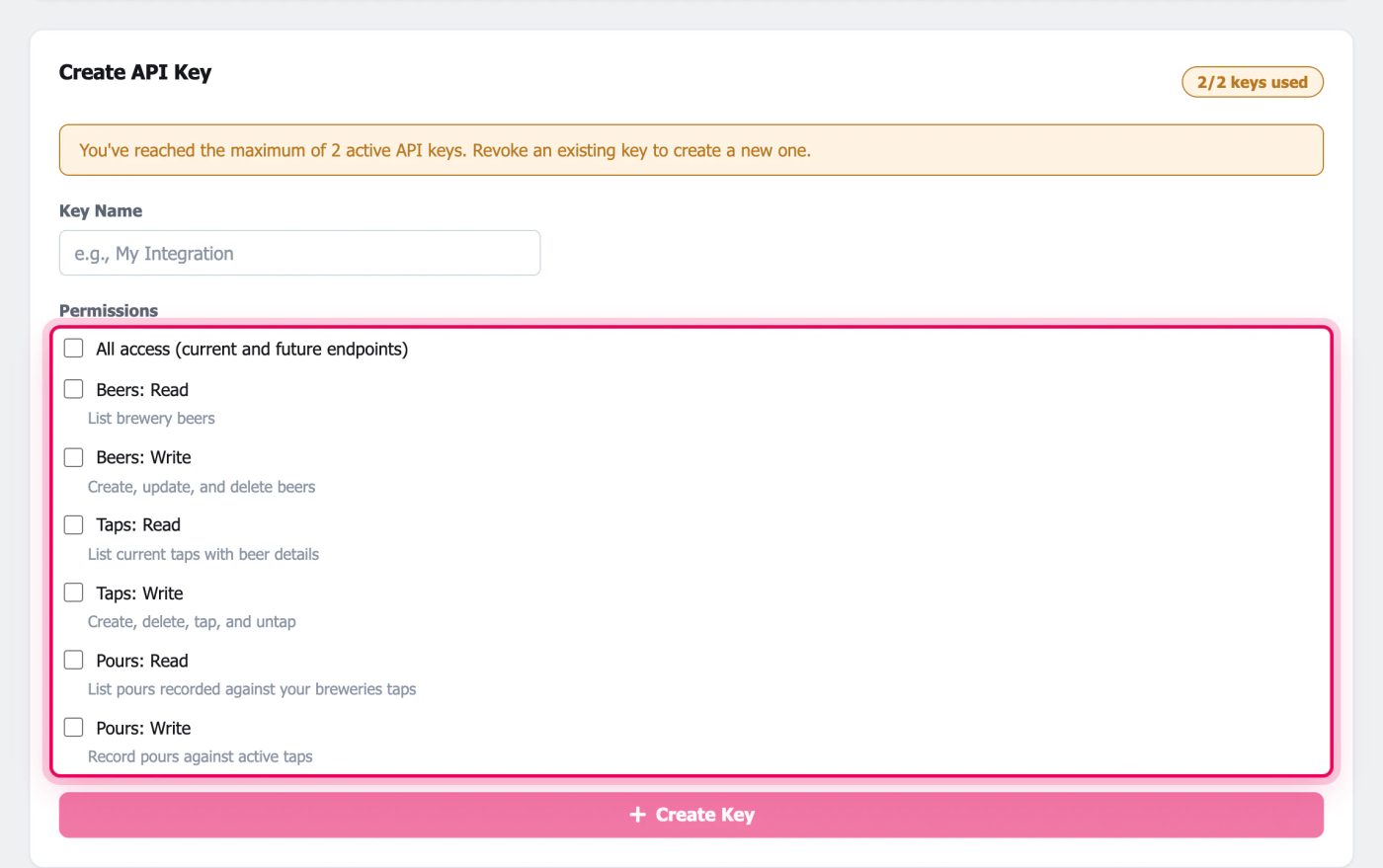
You choose a key's scopes under Permissions when you create it. The admin labels and the scope names in error messages match like this:
| Permission in the admin | Scope | Endpoints it opens |
|---|---|---|
| Beers: Read | beers:read | List beers, get a beer, find a beer by external ID |
| Beers: Write | beers:write | Create, update and delete beers |
| Taps: Read | taps:read | List taps, get a tap, find a tap by external ID, get the brewery and its taplist |
| Taps: Write | taps:write | Create and delete taps, tap and untap a beer |
| Pours: Read | pours:read | List pours, find a pour by external ID |
| Pours: Write | pours:write | Record a pour |
| All access (current and future endpoints) | * | Everything, including endpoints added later |
A Write scope doesn't include its Read scope. A POS that records pours and also checks what's on tap needs Pours: Write and Taps: Read.
You can't change a key's scopes after you create it. To add one, create a new key with the scopes you need, switch your integration to it, then revoke the old key.
Keep keys safe
- Call the API from your own server. A key in a web page or a phone app can be copied by anyone who opens it.
- Store keys in your server's environment settings or a secrets manager, not in source code.
- Give each integration its own key, so you can revoke one without stopping the others.
Full reference
The API reference lists every endpoint with its fields and responses. Next, see Manage beers and taps with the API and Record pours with the API.
Was this article helpful?