
Sharing
Make a QR code that opens your live taplist, style it with your logo and colors, and download it as a PNG or SVG for table tents, posters and social posts.
Guides
- Beer pages and beer QR codes Give every beer its own shareable page, print a QR code for cans, labels and table tents, and use one barcode for both retail scanning and the beer page.
- Embed your taplist on your website Add your live taplist to your own website with a short embed code. Choose a list or grid, colors, font and fields, then paste the code into your site.
Overview
A QR code lets guests open your taplist on their phone. The QR Code page makes one that points to your taplist address, with your logo in the middle if you like, and downloads it ready to print or post.
The QR Code page is on every plan. You need to be a Manager or the Owner to open it.
This category also covers beer pages and beer QR codes and the website embed.
Make your QR code
Open QR Code in the sidebar
The Live Preview shows your code. Scans to: shows the address it opens: your main taplist link.
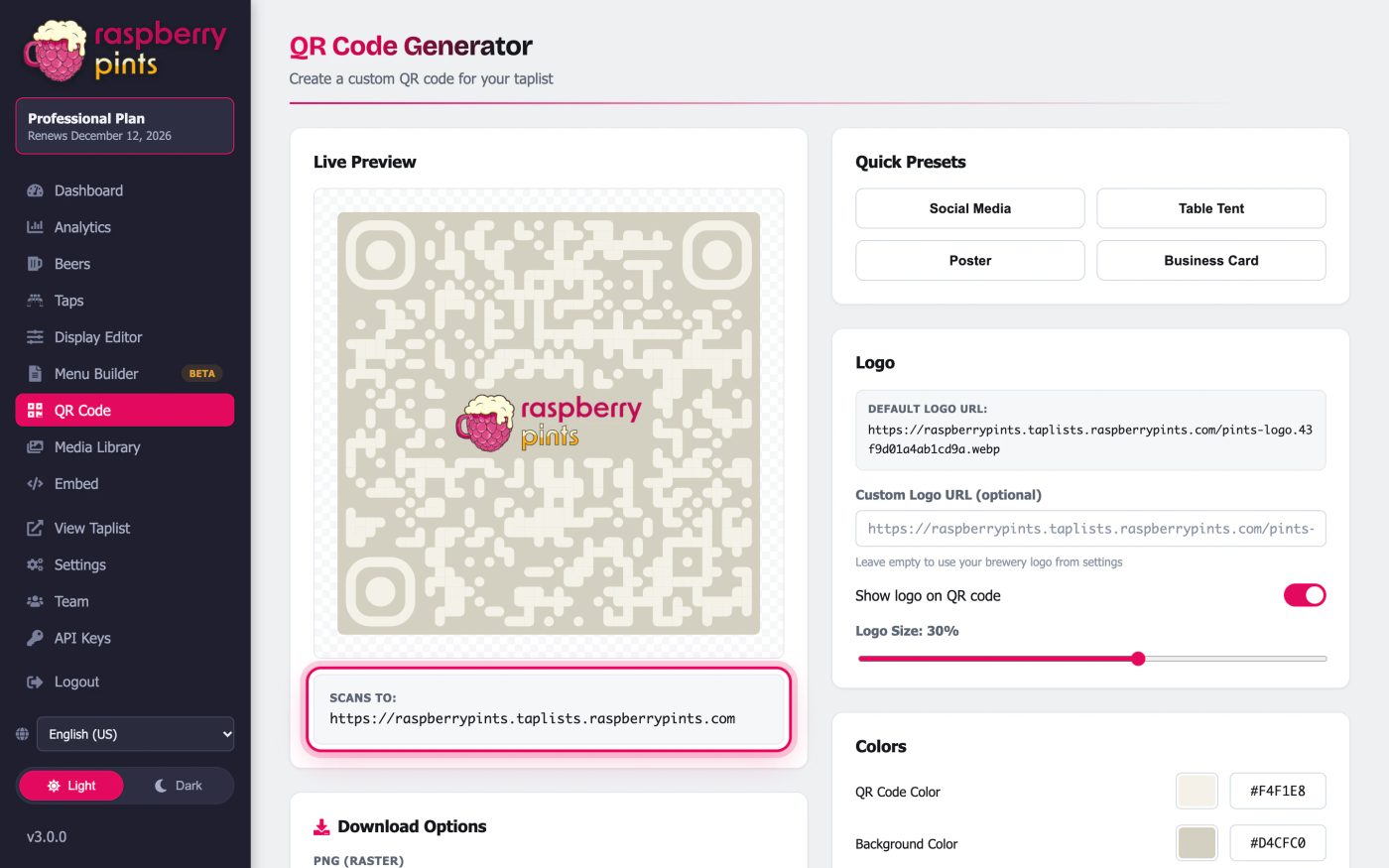
Pick a starting point under Quick Presets
Social Media, Table Tent, Poster or Business Card each set the size, dot style and how much of the code can be covered by a logo. You can change everything after.
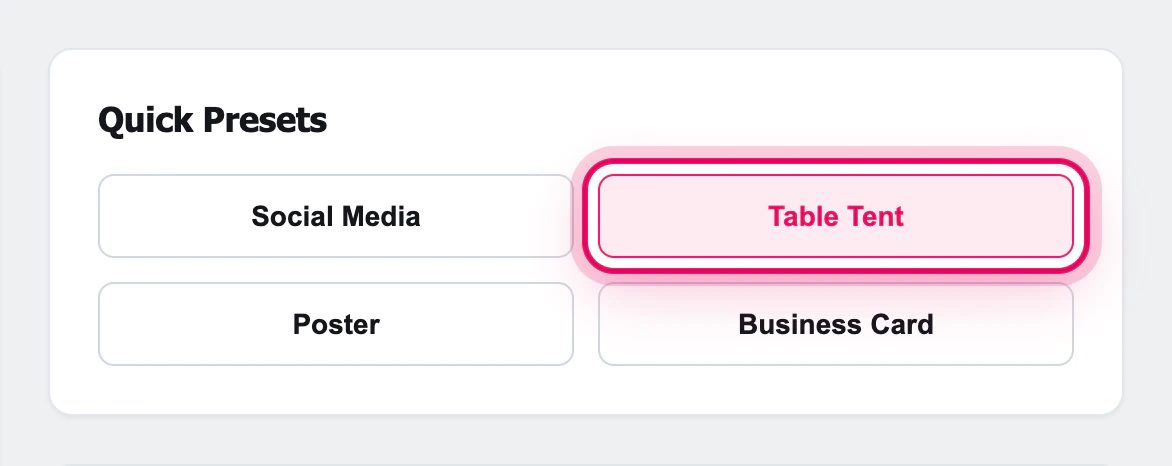
Add your logo
Turn on Show logo on QR code to put your logo in the middle, and set Logo Size. It uses the logo from your taplist settings. To use a different image, paste its address into Custom Logo URL (optional).
Choose colors and style
Set QR Code Color and Background Color, then a Dot Style and Corner Style.
Download it
Under Download Options, pick a PNG size or Download SVG.
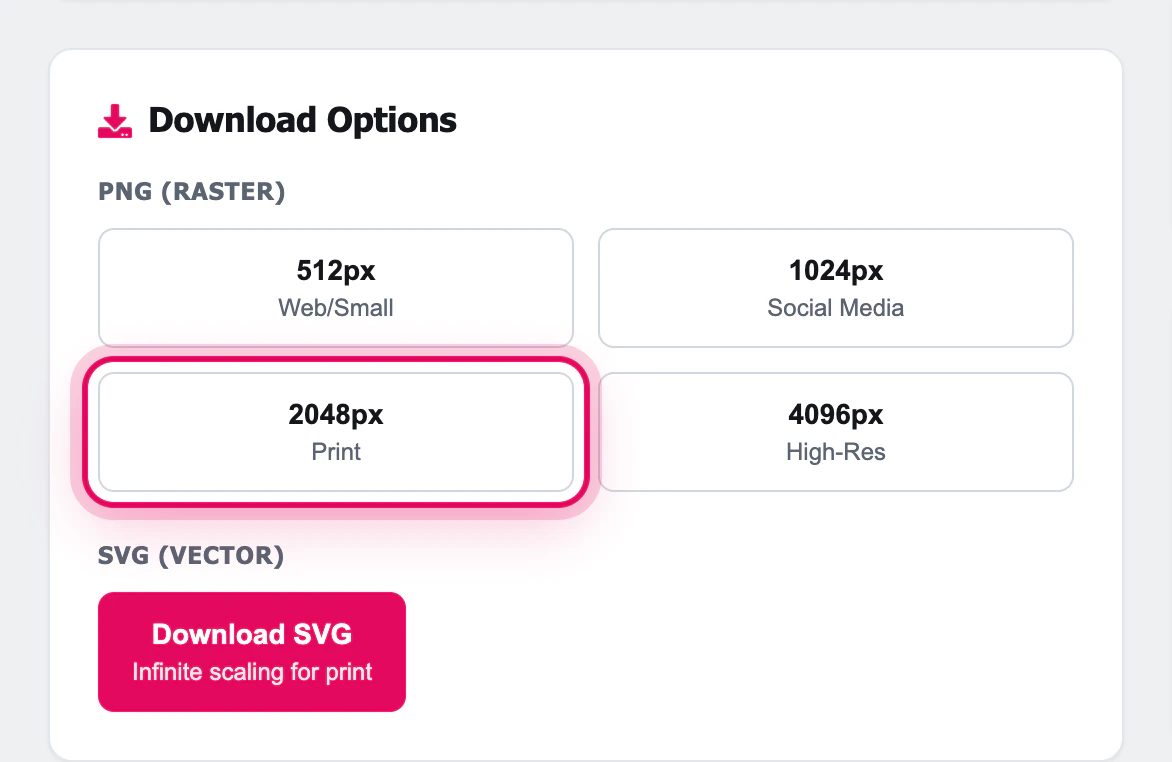
The page doesn't save your design. Download your code when you're happy with it.
Which file to download
| Download | Use it for |
|---|---|
| 512px (Web/Small) | Websites and small images |
| 1024px (Social Media) | Social posts |
| 2048px (Print) | Printed menus, table tents and flyers |
| 4096px (High-Res) | Large prints |
| SVG (Vector) | Print at any size, from a business card to a poster |
Tips
- A dark code on a light background scans best.
- With a logo, keep Error Correction (under Advanced) on High (30%) - Best for logos. It lets phones read the code even though the logo covers part of it.
- Always test the code with your phone before printing.
- The code opens your taplist, not a list of beers, so it stays right when your beers change. It contains your subdomain, so make a new code if you change your subdomain.
Your taplist must be public
The code opens your public taplist. While your taplist is private, guests who scan see an error, and the page shows QR codes need a public taplist with a Make public button. See Make your taplist public.
To link guests to one beer instead of the whole taplist, see Beer pages and beer QR codes.