
Displays and Layouts
What the Display Editor does, which plans include it, and how custom layouts reach your TVs, your QR code and your main taplist link.
Guides
- TV and responsive layouts Choose between a TV layout, horizontal or vertical, and a responsive layout for phones, tablets and computers, and see how each one behaves.
- Start from a template Begin a new layout from a ready-made template or a blank canvas, and browse every template in the public gallery before you choose.
- Edit a layout Add and arrange items, style single pieces of text, set up pages and rotation, and change a layout's colors and fonts in the Display Editor.
- Version history, undo and redo Undo and redo changes while you edit a layout, and look back at or restore any version of a layout saved in the last 90 days.
- Migrate a classic layout to responsive Turn a classic custom layout into a responsive one that adapts to phones, tablets and computers, while the original stays live until you switch.
- Custom CSS for a layout Add your own CSS to one custom layout with a Custom CSS item, target single items with class names, and find built-in class names on the cheat sheet.
- Describe it Describe the look you want in plain words and the automated layout designer drafts a complete layout, with every tap on it, ready for you to adjust.
- Ask for changes Ask the automated layout designer to change a saved layout in plain words, such as bigger prices or a new section, then review the result before you save.
- Printable menus with the Menu Builder Design a printable menu from a template or a blank page, choose its paper size, and print it or save it as a PDF with the Menu Builder.
Overview
The Display Editor is where you design your own taplist layouts. You drag items onto a canvas, style them, and choose which screens show each layout. Owners and Managers can use it.
Classic displays and custom layouts
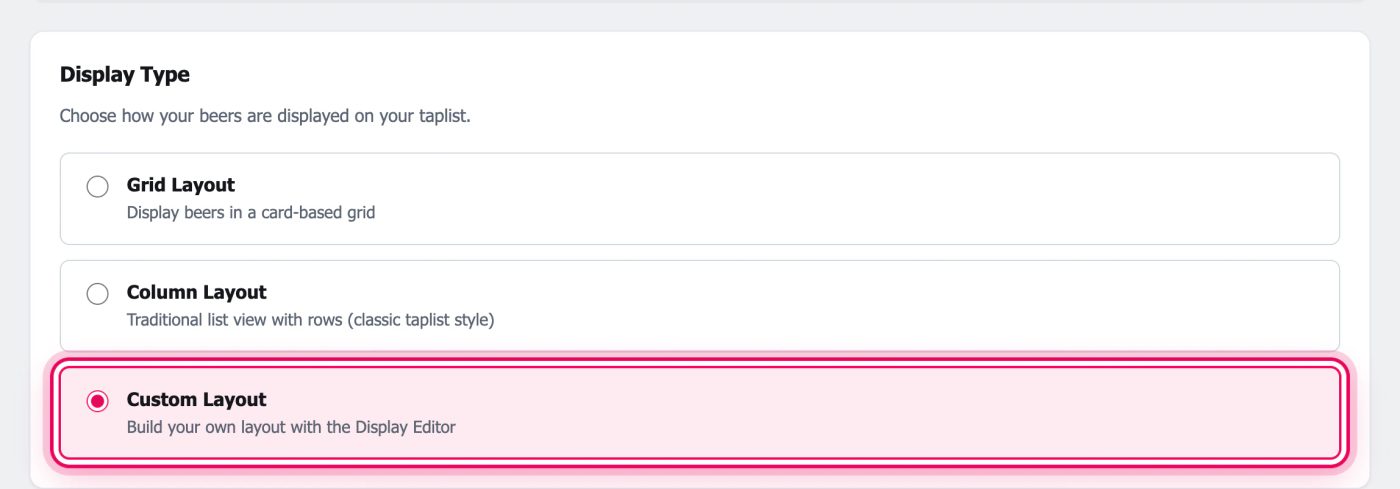
Your public taplist can use one of three display types, set in Settings > Display > Display Type:
- Grid Layout: beers in a card-based grid.
- Column Layout: a list view with rows.
- Custom Layout: a layout you build in the Display Editor.
You can create and preview layouts at any time. Your public taplist only shows them once Custom Layout is selected. Until then, the Display Editor shows a notice with an Enable in Settings link.
Where layouts show
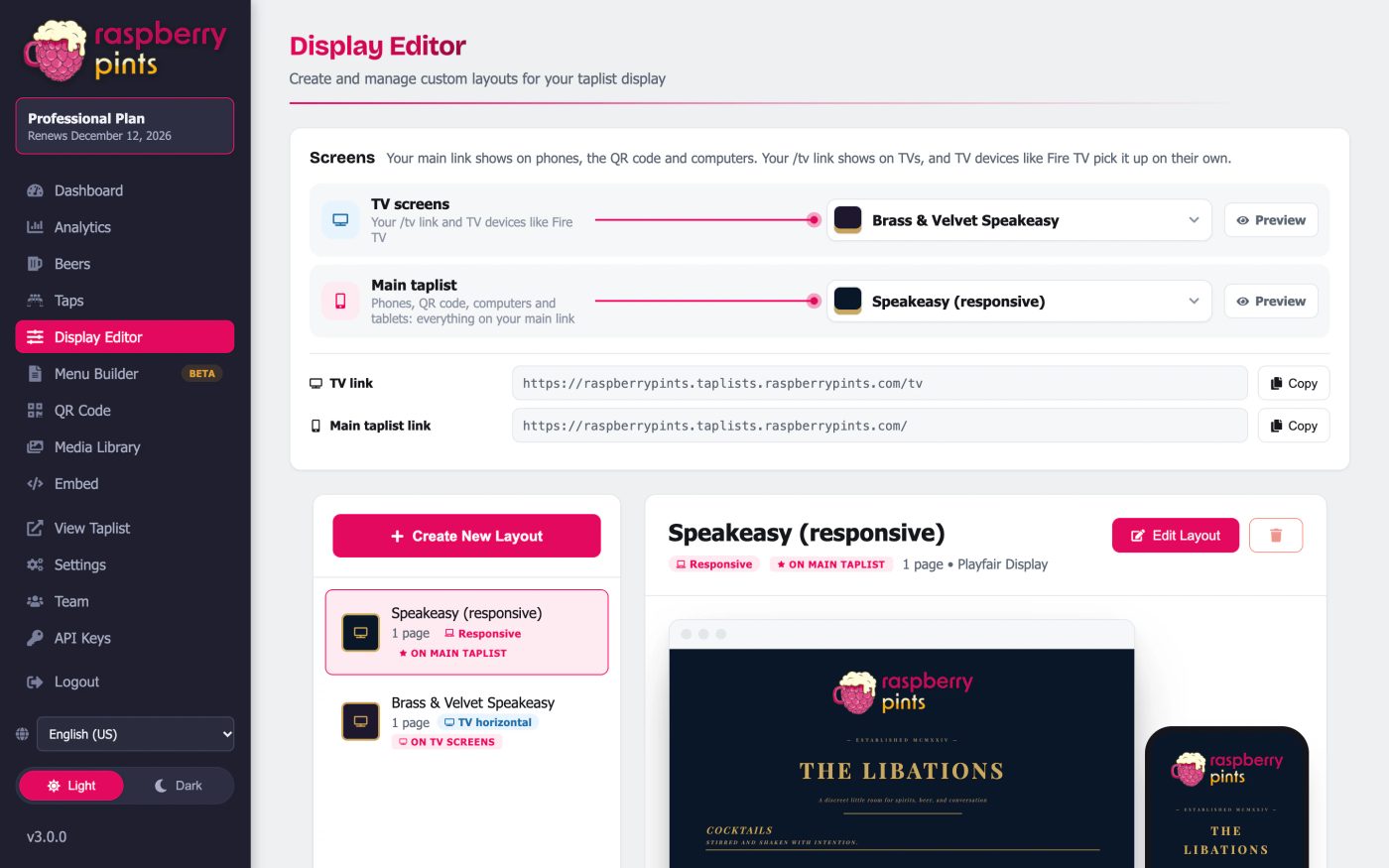
Your taplist has two links, and each one shows its own layout. The Screens card at the top of the Display Editor sets both:
| Link | Shown on | Card row |
|---|---|---|
| Main taplist link | Phones, the QR code, tablets and computers | Main taplist |
| /tv link | TVs, and TV devices like Fire TV | TV screens |
If you don't pick a layout for TV screens, it stays on Same as main taplist and your TVs show the same layout as your main link. The card also shows both links with a Copy button, and a Preview button for each. See Screens and your TV link for setting up a TV.
Kinds of layout
When you click Create New Layout, you first choose the screen it's for:
- TV layouts fill a TV screen and never scroll. They come in horizontal and vertical.
- Responsive layouts are for your main taplist. They adapt to phones, tablets and computers.
TV and responsive layouts explains the difference. Layouts made before these two kinds existed are classic layouts. They keep working, and you can turn one into a responsive layout with Migrate to responsive.
What you can do in the Display Editor
- Start from a ready-made design or a blank canvas: Start from a template.
- Add taps, drinks, food, headings, images and more, and style each one: Edit a layout.
- Go back to any save from the last 90 days: Version history, undo and redo.
- Add your own decoration with CSS: Custom CSS for a layout.
- On the Professional plan, have the automated layout designer draft a layout for you: Describe it.
The Menu Builder, next to the Display Editor in the sidebar, makes printable menus instead. See Printable menus with the Menu Builder.
How changes reach your screens
A layout change shows on your screens after you click Save. On the Professional plan, open taplists update as soon as you save. On other plans, open taplists check for changes every 60 seconds.
Managing your layouts
Pick a layout in the list to preview it. From the preview you can:
- Edit Layout to open it in the editor.
- Put it on its screen with Show on TVs (TV layouts) or Show on main taplist (other layouts).
- Delete it with the trash button.
You can't delete the layout on your main taplist, or the one on your TV screens. Put another layout on that screen first.