
Start from a template
Begin a new layout from a ready-made template or a blank canvas, and browse every template in the public gallery before you choose.
Every new layout starts from a template, from a blank canvas, or, on the Professional plan, from a draft by the automated layout designer. Whichever you pick, you can change everything afterwards.
Pick a template
Open the Display Editor and click Create New Layout
Choose the kind of layout
Pick a TV layout (horizontal or vertical) or a responsive layout. See TV and responsive layouts.
Filter the templates if you like
The Choose a Template page only lists templates made for the screen you picked. Use All Templates, Classic, Modern, Rustic, Minimal or Bold to narrow the list.
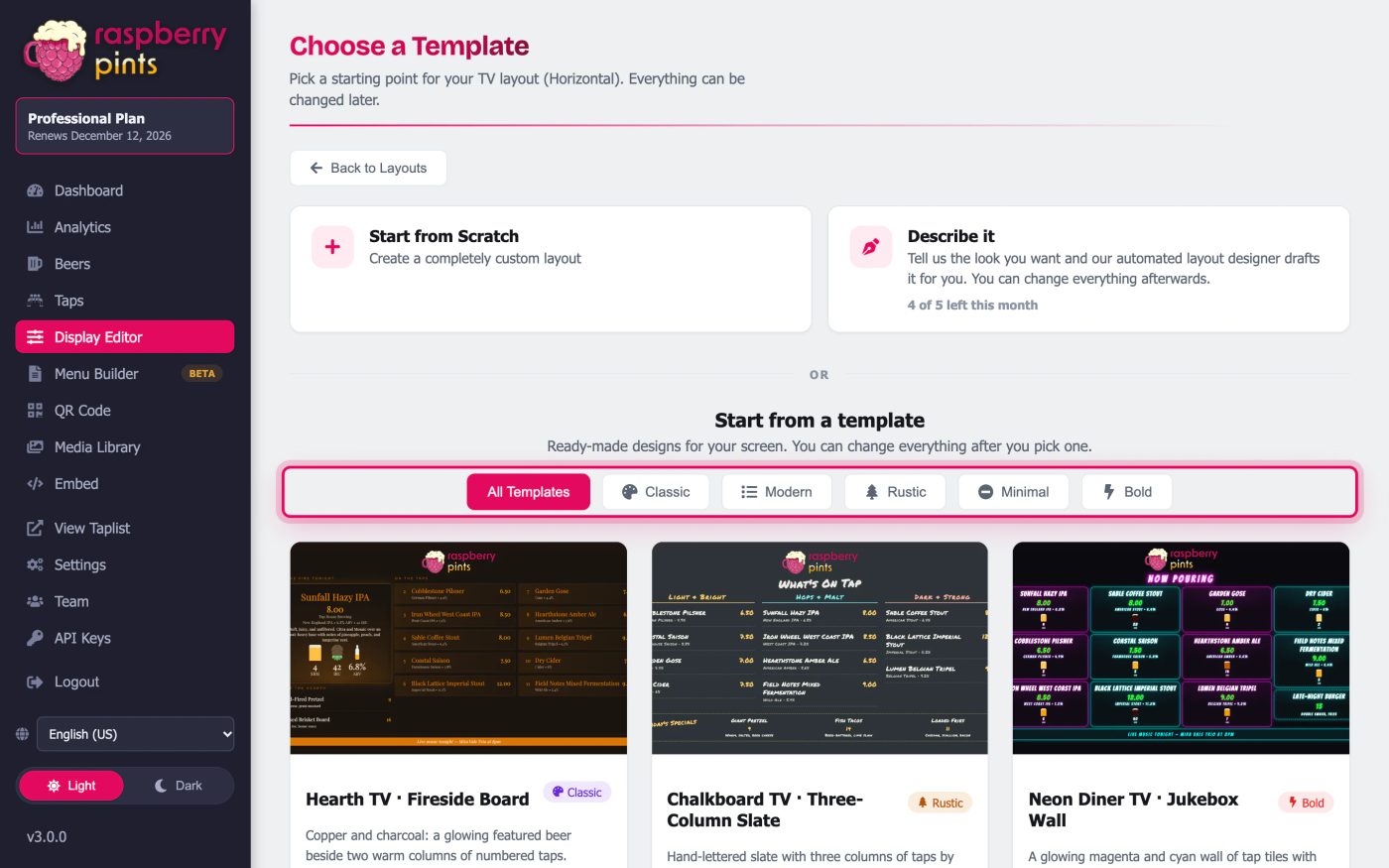
Click a template
A bar appears at the bottom with the template's name in Layout Name:. Change the name now or later.
Click Use This Template
The template opens in the editor.
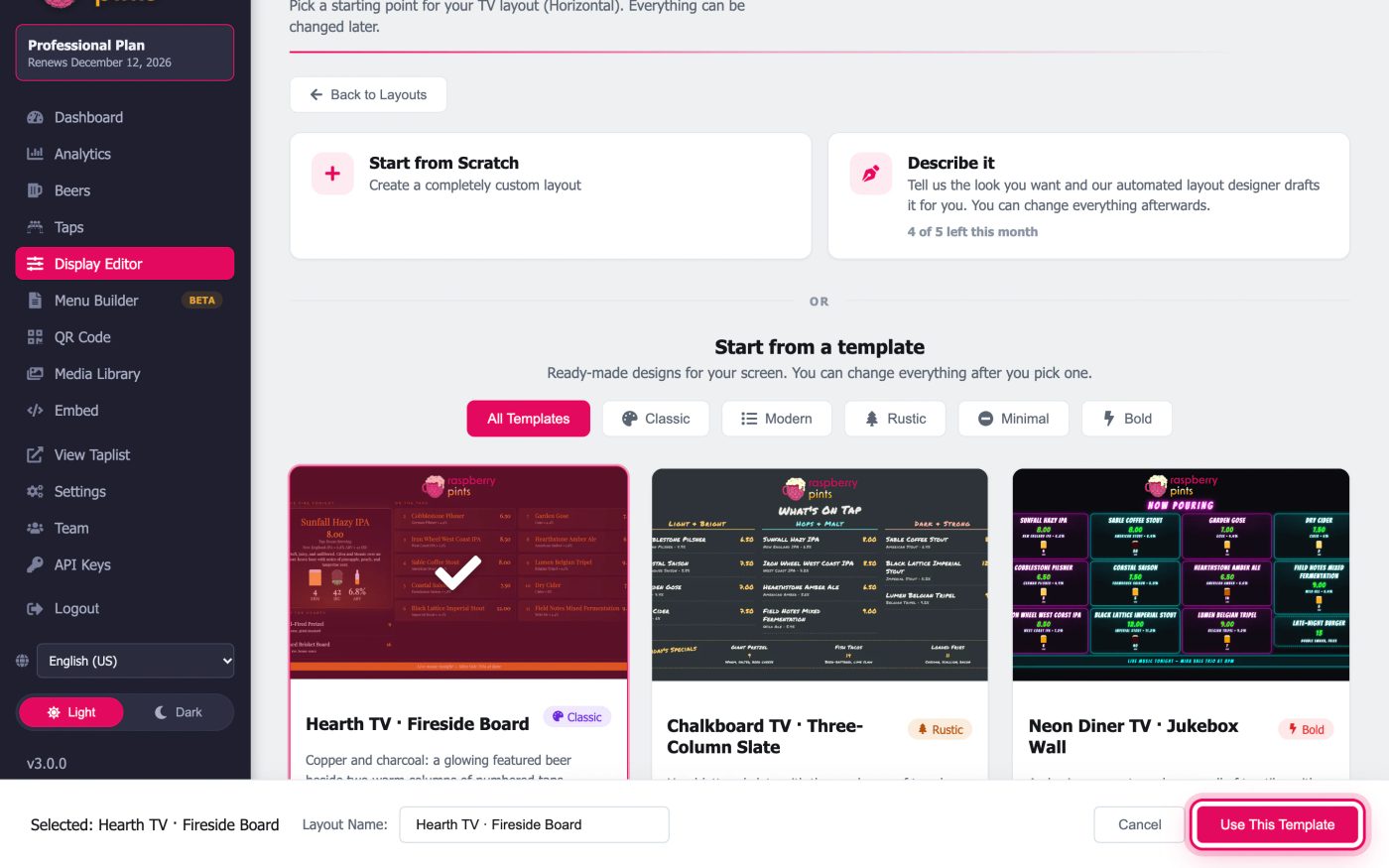
Make it yours and click Save
Nothing is saved until you click Save in the editor.
To look at a template full size before you choose, click View in Sandbox on its card. It opens in a new tab with sample beers.
What a template brings
A template gives you a starting design: pages, items, colors and fonts. Its tap items show the beers on your own taps, by tap number. A template uses its own colors and fonts, not the ones from Settings > Appearance. Change them in Global Styles in the editor (see Edit a layout).
There are templates for each kind of layout:
| Layout type | Templates |
|---|---|
| TV horizontal | 10 |
| TV vertical | 10 |
| Responsive | 18 |
Start from scratch instead
Click Start from Scratch at the top of the Choose a Template page. You get a blank layout with one page, named New Layout. It takes its colors and fonts from Settings > Appearance, so it already matches your branding.

On the Professional plan, the Describe it card next to it lets you describe the look you want and have the automated layout designer draft it. See Describe it.
Browse the template gallery
Every template is also on our website at raspberrypints.com/templates. You don't need an account to browse it. You can filter by screen and open a live preview of each template running with sample beers.
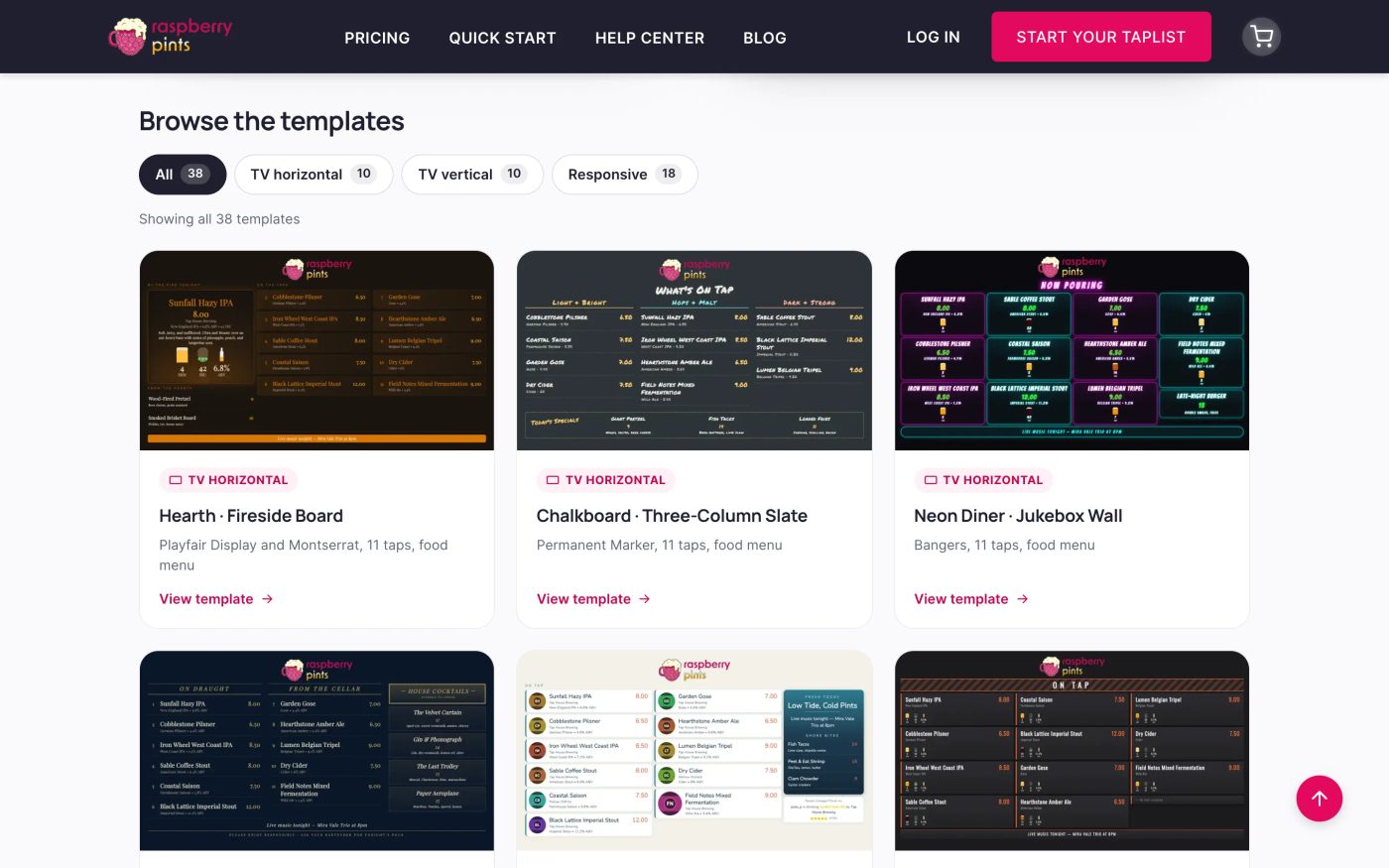
When you find one you like, create a layout for the same screen in the Display Editor and look for the same name. For example, the gallery's Hearth · Fireside Board (a horizontal TV template) is Hearth TV · Fireside Board in the Display Editor.
Was this article helpful?