
Printable menus with the Menu Builder
Design a printable menu from a template or a blank page, choose its paper size, and print it or save it as a PDF with the Menu Builder.
The Menu Builder makes printed menus for your tables, bar or front window. It works like the Display Editor: you drag items onto a page and style them. Instead of going on a screen, the menu is printed or saved as a PDF. Owners and Managers can use it.
Create a menu
Click Menu Builder in the sidebar
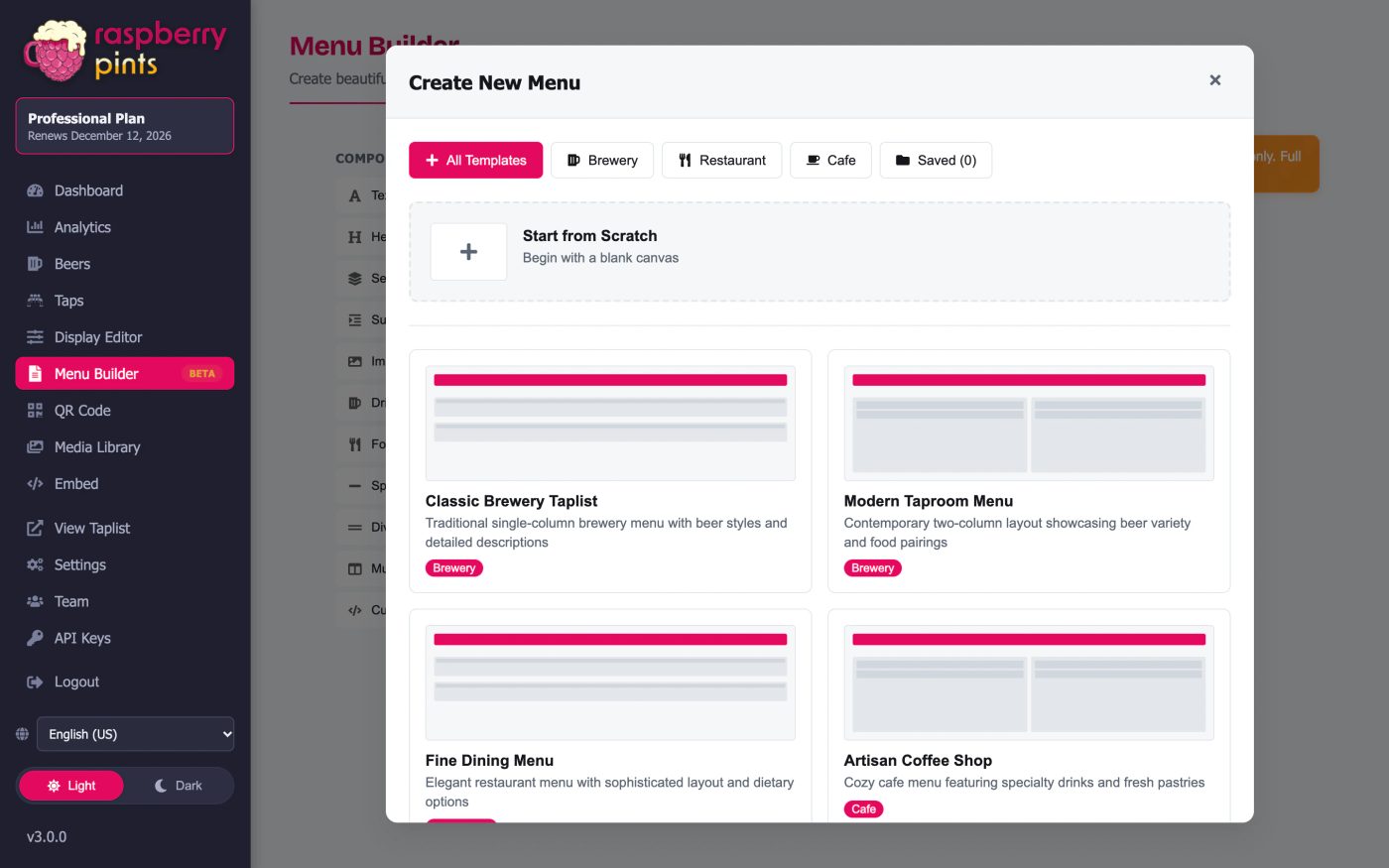
The Create New Menu window opens.
Pick a starting point
Click Start from Scratch for a blank page, or pick a template. Filter the templates with Brewery, Restaurant or Cafe. Saved lists the menus you saved in this browser.
Name the menu
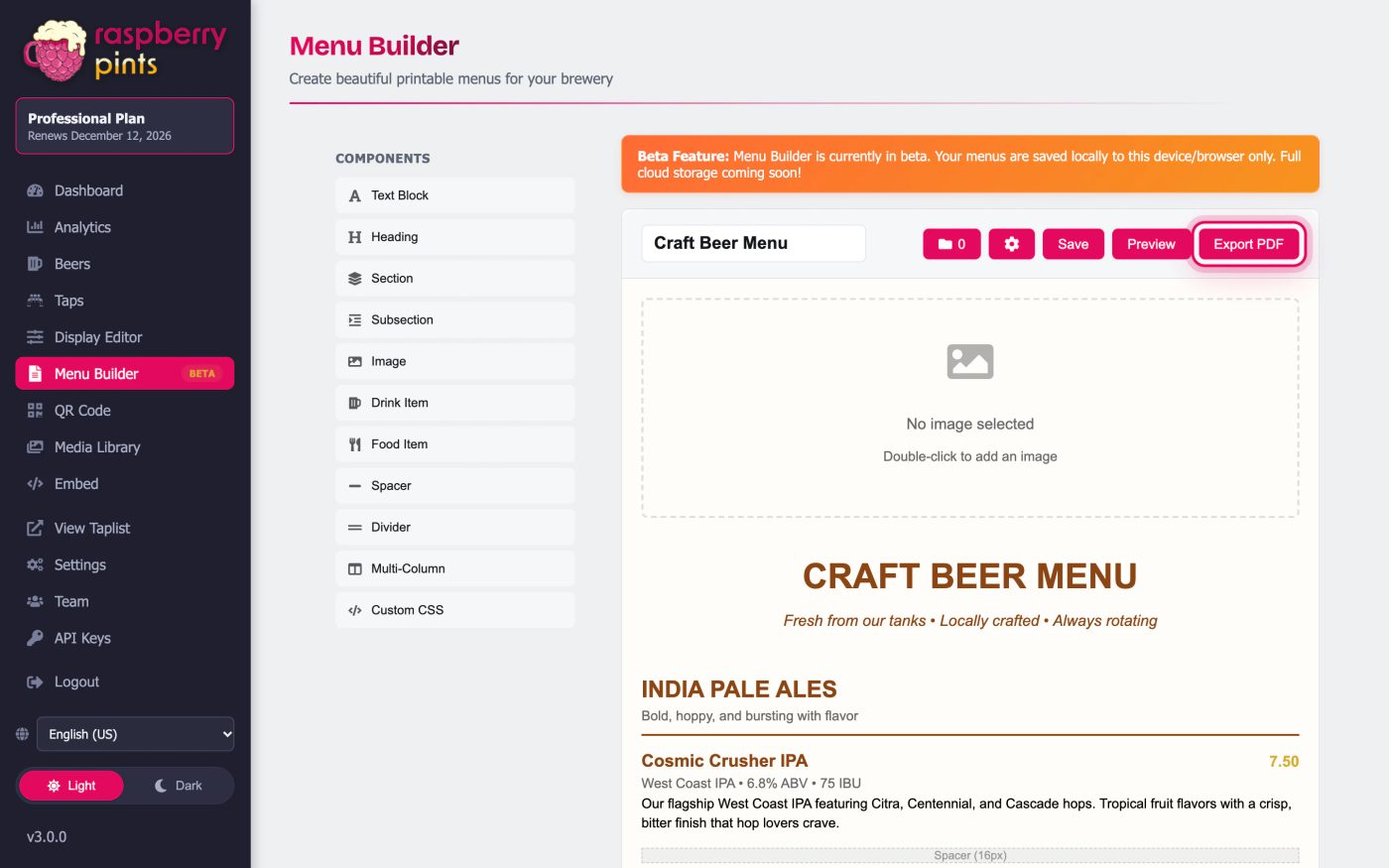
Type a name in the box at the top of the page.
Add and arrange items
Drag items from the Components panel onto the page. Click an item to select it, then use its toolbar to move, edit, duplicate or remove it. See Edit a layout for how items work.
Click Save
The menu is saved in this browser.
What you can put on a menu
The Menu Builder has the Display Editor's content items: headings, text, sections and subsections, images, drinks, food, spacers and columns.
- Drink Item can pick a beer from your beers (Select from Beer Database) or take details you type in.
- Food Item shows a dish with its description, price and dietary information.
Tap items, message banners, Untappd check-ins and collapsible groups aren't offered, because a printed menu can't update itself.
Paper size and margins
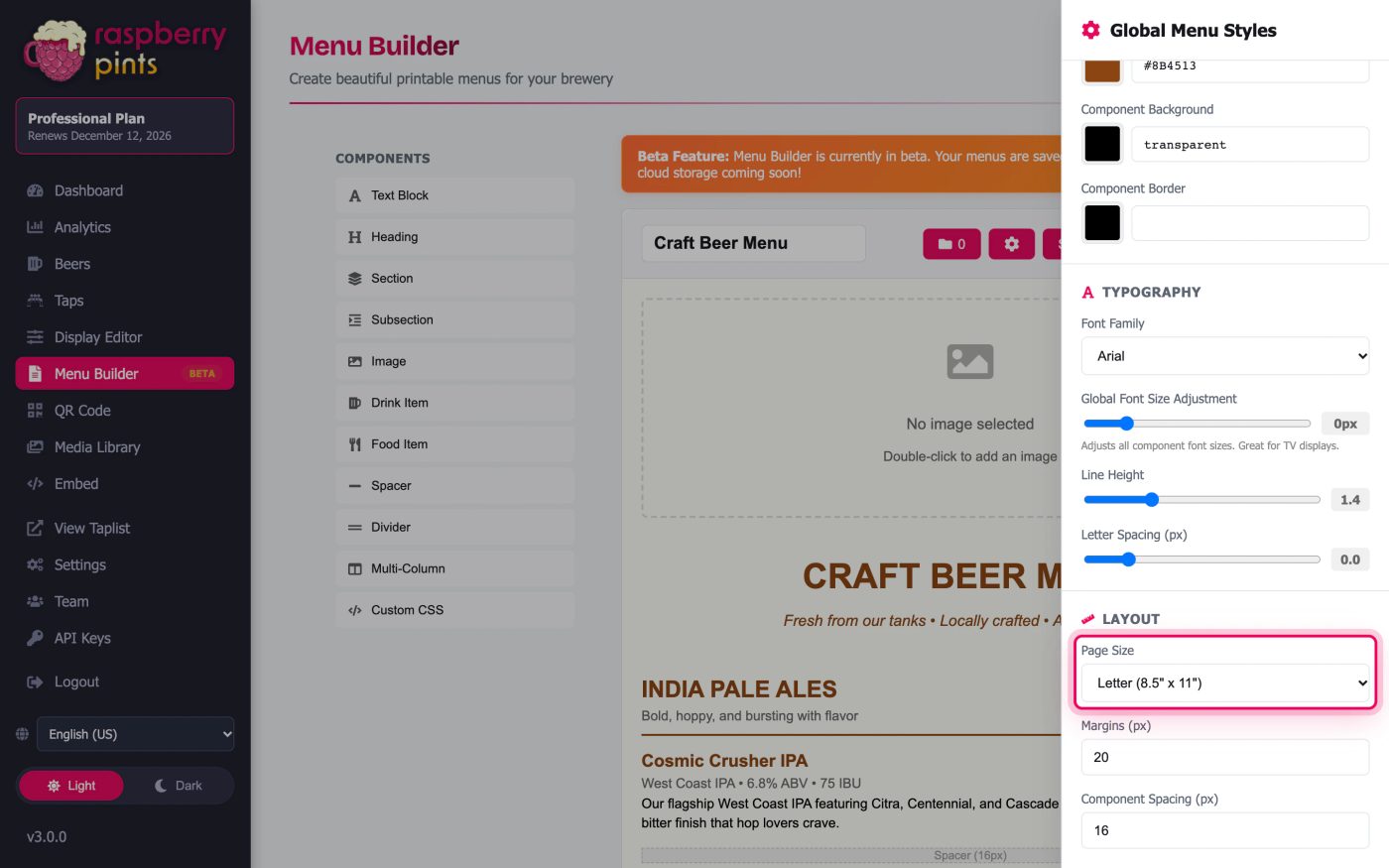
Click the gear button in the toolbar to open Global Menu Styles. Under Layout, choose a Page Size:
- Letter (8.5" x 11")
- Legal (8.5" x 14")
- A4 (210mm x 297mm)
- A3 (297mm x 420mm)
Set Margins (px) and Component Spacing (px) there too, along with the menu's colors and fonts.
Print or save as a PDF
Click Preview to check the menu
It opens in a Menu Preview window.
Click Export PDF
Your menu opens in a new window with your browser's print dialog.
Print it, or save it as a PDF
Choose your printer, or your browser's option to save as PDF.
Export PDF is greyed out until the menu has at least one item. If nothing opens, your browser may be blocking pop-up windows: allow them for the admin and try again.
Open, switch and delete menus
The folder button in the toolbar shows how many menus you've saved. Click it to open Saved Menus:
- Load opens a saved menu.
- New Menu opens the Create New Menu window again.
- The delete button removes a saved menu, after you confirm.
Was this article helpful?