
Describe it
Describe the look you want in plain words and the automated layout designer drafts a complete layout, with every tap on it, ready for you to adjust.
Describe it turns a short description into a finished layout. Tell the automated layout designer the mood, colors and fonts you want and what each tap should show. It drafts a layout for the screen you picked, built from the same items and settings as the rest of the Display Editor, so you can change every part of it afterwards.
You need to be a Manager or the Owner to use the Display Editor.
Draft a layout
Open the Display Editor and click Create New Layout
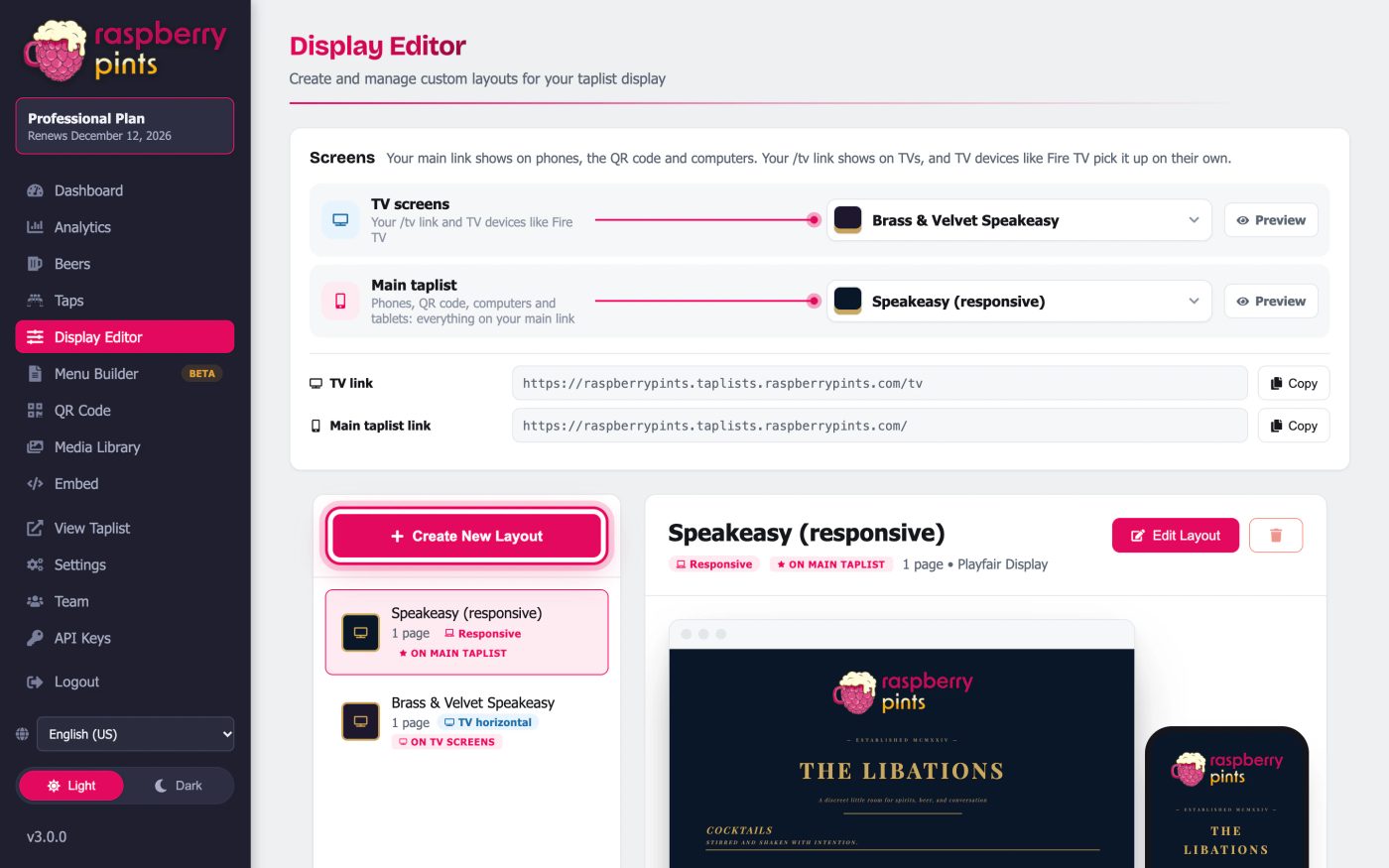
Choose the kind of layout
Pick For the TVs in your taproom (choose Horizontal or Vertical first) or For phones, tablets and computers. The draft is made for that screen. See Layout types for the difference.
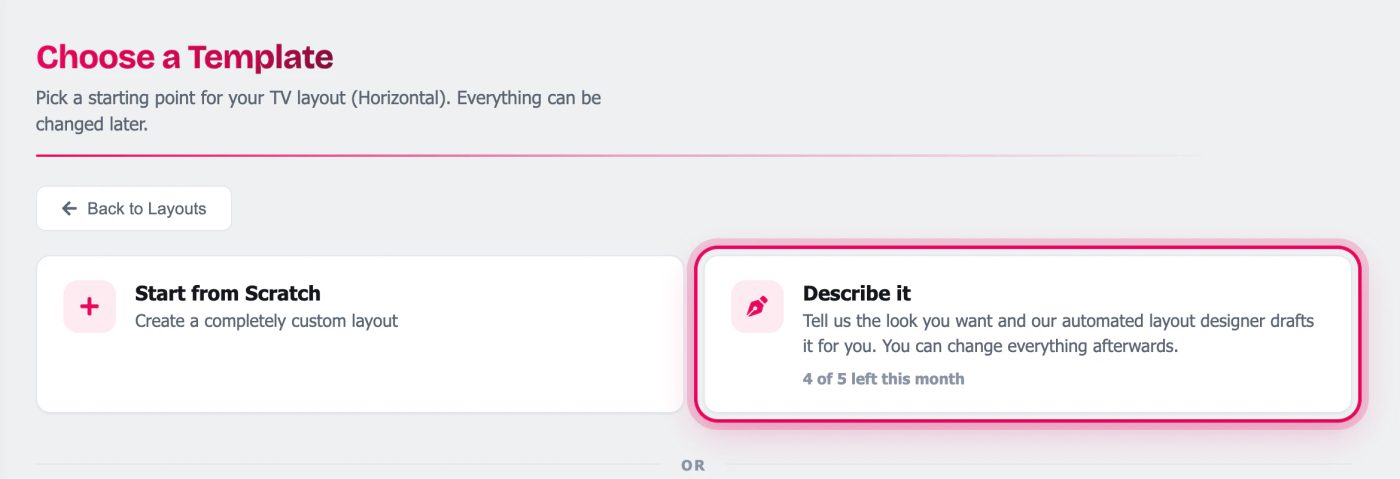
Click Describe it
It sits next to Start from Scratch, above the templates. The card shows how many drafts you have left this month.
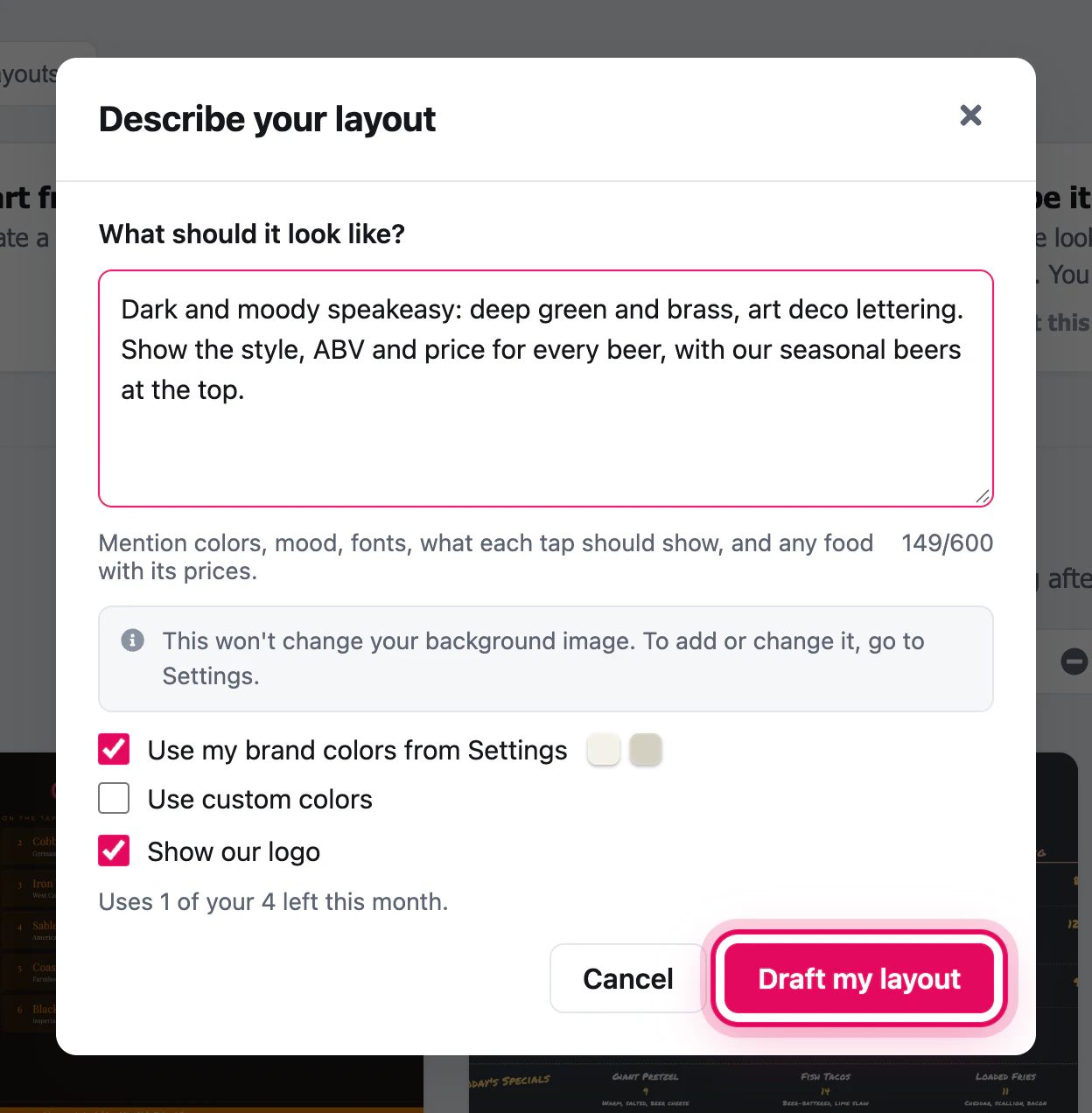
Describe the look under What should it look like?
Mention colors, mood, fonts, what each tap should show, and any food with its prices. You have up to 600 characters.
Choose colors and logo
- Use my brand colors from Settings uses the primary and secondary colors from your taplist settings.
- Use custom colors lets you pick two colors for this layout only. Your colors in Settings stay as they are.
- Show our logo appears when your taplist has a logo.
The designer doesn't change your background image. To add or change it, go to Settings.
Click Draft my layout
The form shows what it's working on, with tips to read while you wait.
The form says a draft usually takes two to four minutes. When it's ready, it opens in the Display Editor.
Keep working while it drafts
Click Keep working while it drafts to close the form and use the rest of the admin. Your browser may ask whether RaspberryPints can show notifications. Allow it if you'd like a notification when the draft is ready while you're in another tab.
While it works, a notice in the sidebar, under your plan, shows Drafting your layout and the time so far. When it's done, the notice changes to Your layout is ready:
- Open it takes you to the Display Editor with the new layout open.
- Dismiss hides the notice. The layout stays in your list.
If the draft couldn't be saved to your layouts, the notice offers Discard instead of Dismiss. Discarding throws that draft away, so open it first if you want to keep it.
After the draft opens
A finished draft is added to your layouts. It isn't shown on any screen until you choose it.
- Change anything you like, the same way you'd edit any layout. See Edit a layout.
- Click Save.
- Put it on your TVs or your main taplist from the Screens card. See Screens and your TV link.
To change it in plain words instead, use Ask for changes.
Your monthly drafts
The Professional plan includes 5 new drafts a month. The Describe it card shows how many are left, and the form reminds you that a draft uses one of them before you start. When they're used up, the card shows the date more become available.
Changes you ask for on an existing layout are counted separately. See Ask for changes.
Tips for a good description
- Name a mood and two or three colors: "dark and moody speakeasy, brass and deep green".
- Say what each tap should show: style, ABV, price.
- List any food with its price. The designer doesn't make up food, prices or events.
- You don't need to list your beers. The designer puts your taps on the layout for you.
Troubleshooting
| Message | What it means |
|---|---|
| A layout is already being drafted. Try again in a moment. | Your brewery can draft one layout at a time. Wait for the current one to finish. |
| The layout designer isn't available right now. This one wasn't counted. | Try again later. The draft didn't use one of your monthly drafts. |
| We couldn't draft that one. Try describing it a little differently. | Reword your description and try again. |
| You've used this month's drafts. | No drafts are left this month. The message shows when more become available. |
| Not available right now | The designer is paused for now. Try again later. |
Was this article helpful?