
Custom CSS for a layout
Add your own CSS to one custom layout with a Custom CSS item, target single items with class names, and find built-in class names on the cheat sheet.
A Custom CSS item adds your own CSS to one layout. Use it for decoration the style settings can't draw, like patterns, glows or shapes behind your taps. It only affects the layout it's in.
Add a Custom CSS item
Open the layout in the Display Editor
Drag Custom CSS onto the page
It's under Other in the Components panel. In the editor it shows as a small dashed block that reads "Custom CSS: decorates the whole layout. This block isn't shown on screens."
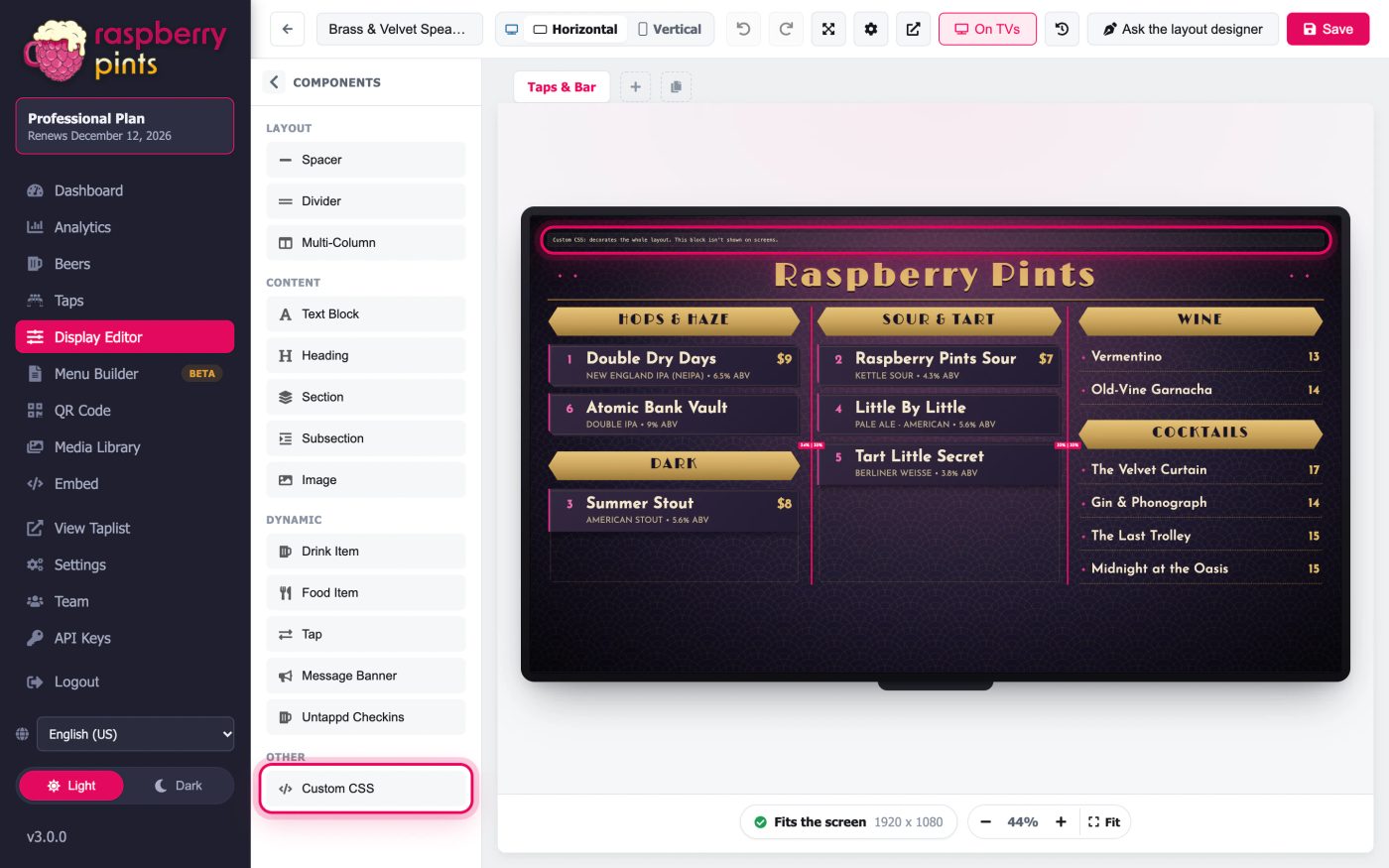
Select the block and click Edit properties
Or double-click it. The Edit Custom CSS window opens.
Write your CSS in Custom CSS for this layout
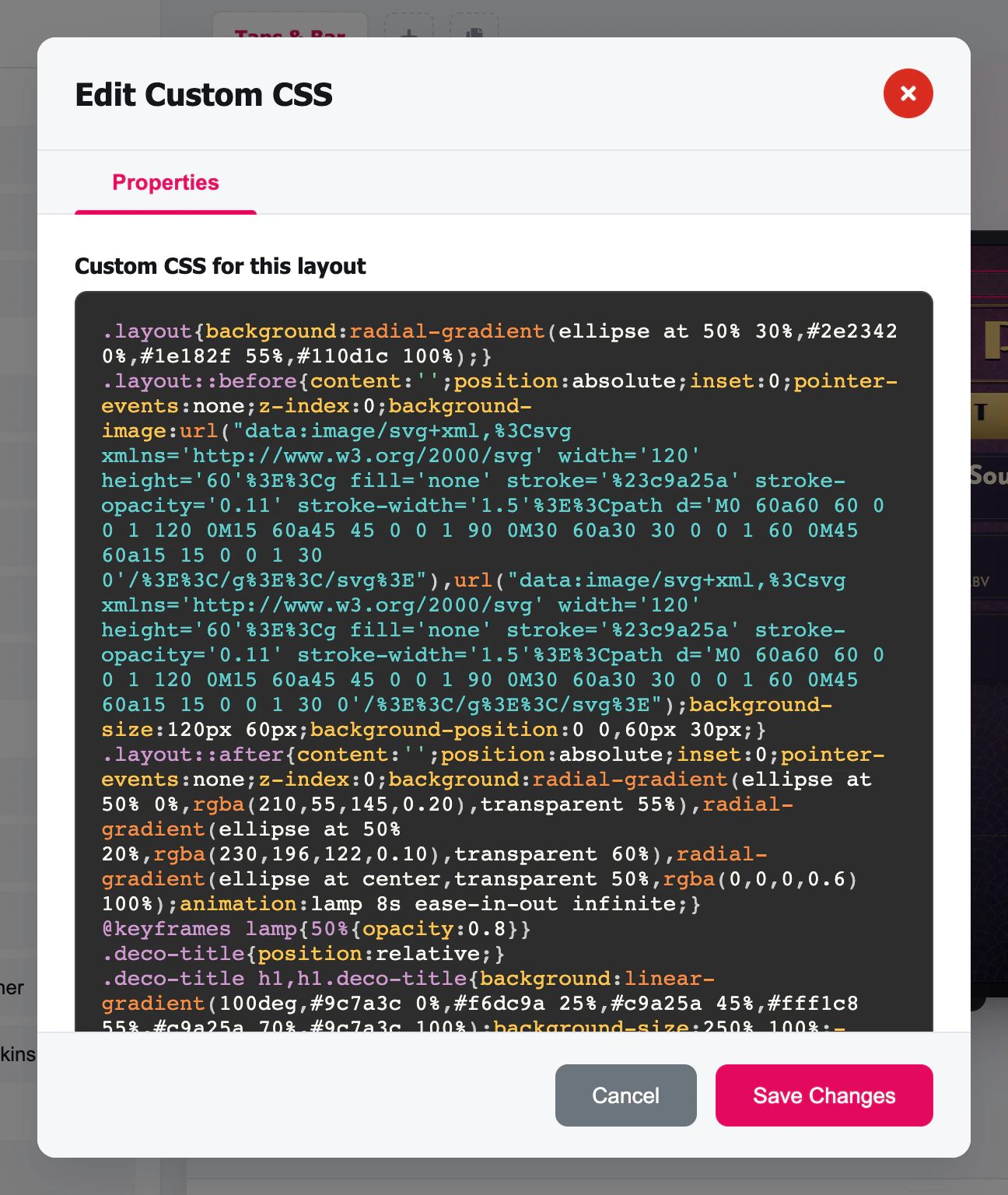
Click Save Changes, then Save the layout
The canvas shows your CSS as soon as you click Save Changes.
Target the whole layout
Use .layout for the layout itself. .layout::before with position: absolute and inset: 0 is a layer behind everything, because the layout's content sits above it.
.layout::before {
  content: '';
  position: absolute;
  inset: 0;
  background: radial-gradient(ellipse at 50% 0%, rgba(228, 9, 94, 0.25), transparent 60%);
}
Your rules are limited to this layout, so they never change other layouts or the admin around the editor.
Target one item
Open the item's settings
Select it and click Edit properties.
Open the Styles tab and scroll to CSS class names
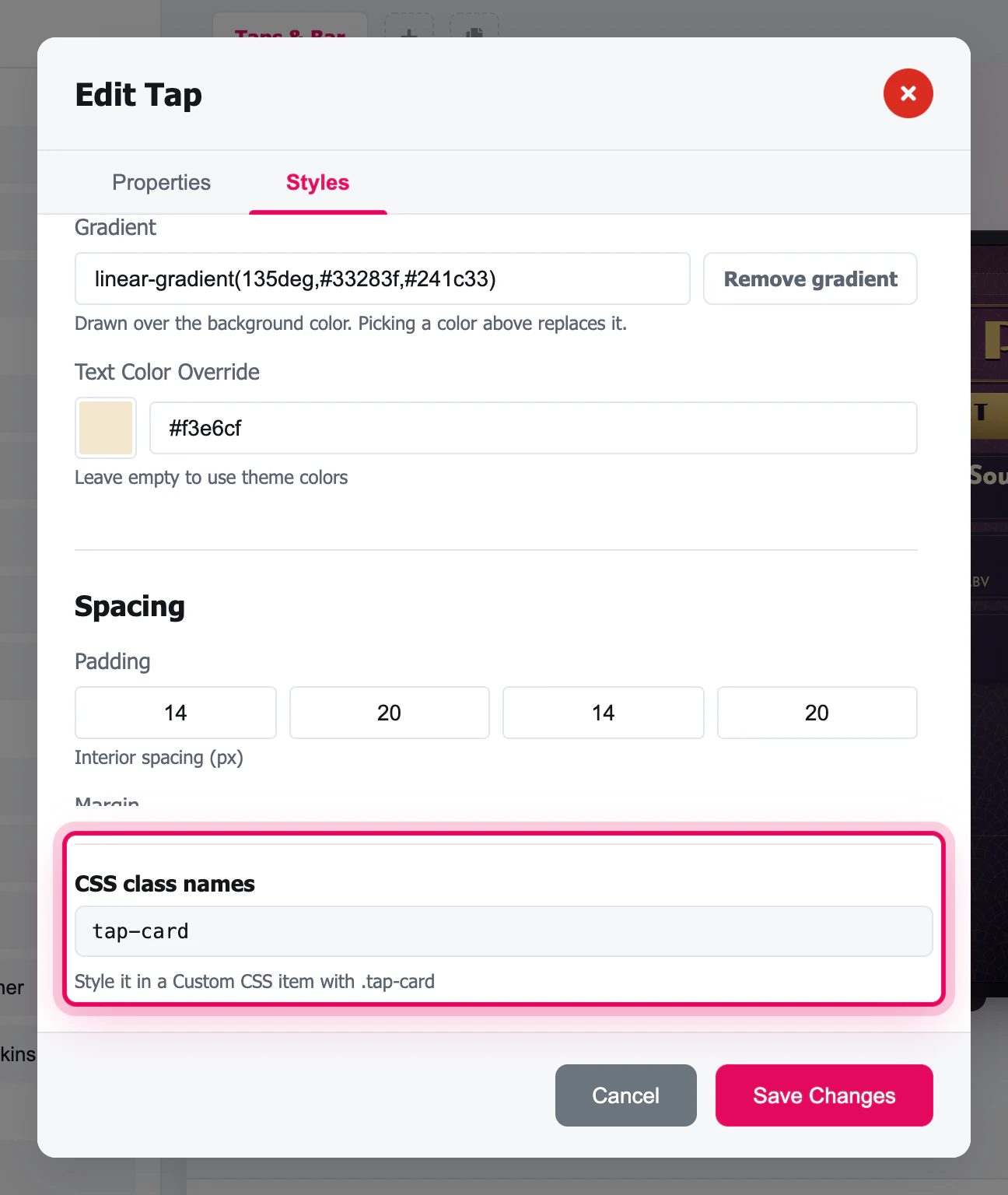
Type a class name, like neon-title
Use lowercase letters, numbers and dashes, up to 3 names separated by spaces. Names can't start with
cl-. The field then shows the selector to use, like.neon-title.Style it in your Custom CSS item
For example,
.neon-title { text-shadow: 0 0 12px #e4095e; }.
Built-in class names
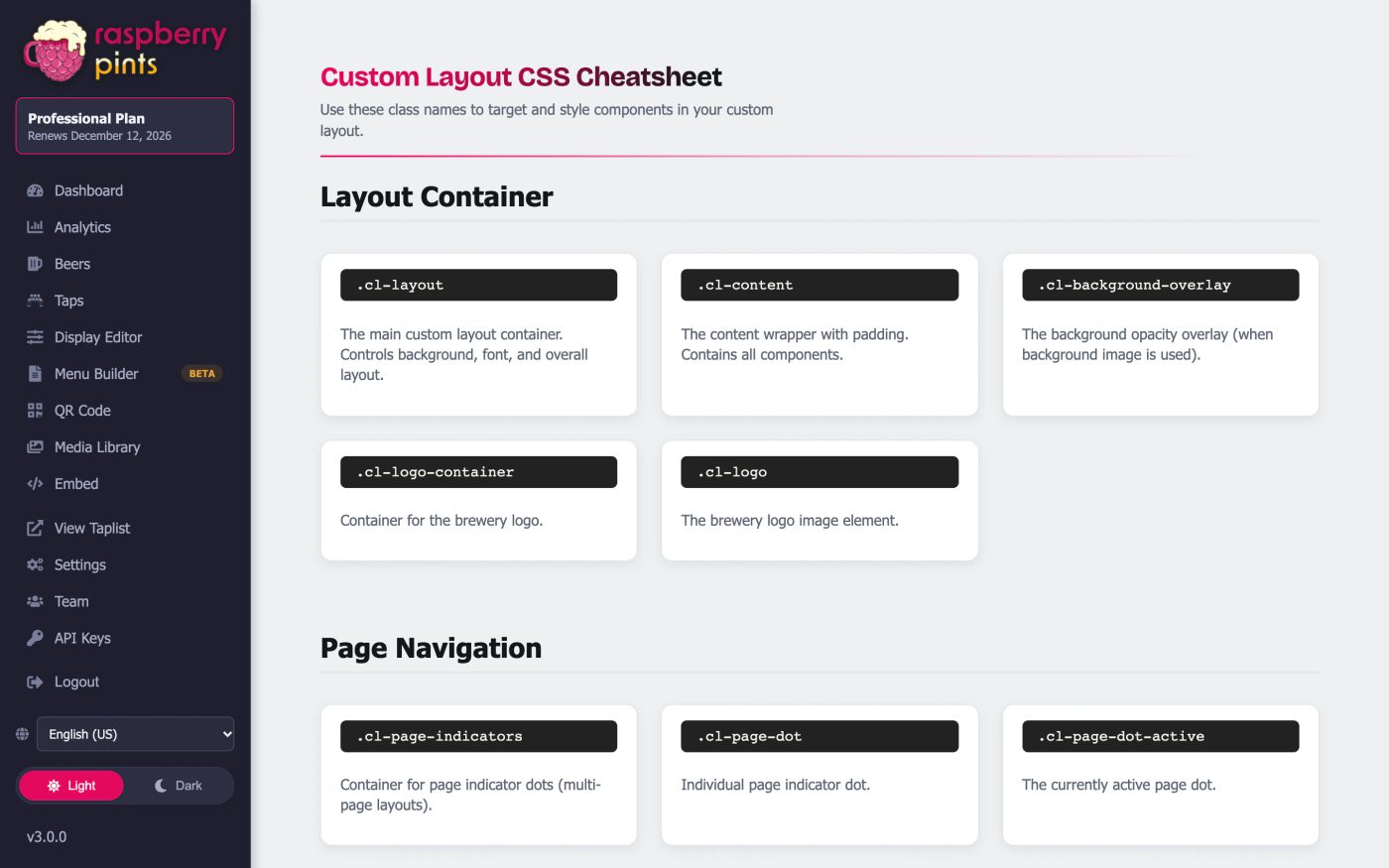
Every part of a layout also has a built-in class name, such as .cl-tap for a tap item, .cl-tap-name for the beer name and .cl-tap-price for its price. You can also pick out one tap with [data-tap-number="1"], or every item of a kind with [data-component-type="tap"].
The full list is on the CSS cheat sheet. Open it from Settings > Advanced > Taplist-wide CSS > View CSS Cheat Sheet. While custom layouts are on, it shows the Custom Layout CSS Cheatsheet.
What isn't allowed
For safety, some CSS is changed or ignored:
- If the CSS uses
@import, backslashes,image-set()or script code such asjavascript:, none of it is applied. The block in the editor turns red and reads "Custom CSS is off: it contains something that isn't allowed". - Images must be inline SVG (
data:image/svg+xml). Any otherurl()is ignored. position: fixedworks likeposition: absolute.- At-rules other than
@media,@supportsand@keyframesare ignored, and so is nested CSS. - One Custom CSS item holds up to 20,000 characters.
Custom CSS and Taplist-wide CSS
Taplist-wide CSS in Settings > Advanced applies to your whole public taplist: every layout, and the classic grid and column views. A Custom CSS item applies to one layout. The Display Editor shows both, without images from web addresses. See Themes and Settings.
Was this article helpful?