
Ask for changes
Ask the automated layout designer to change a saved layout in plain words, such as bigger prices or a new section, then review the result before you save.
You can ask the automated layout designer to change any saved layout: "make the prices bigger", "use a darker background", "add a cocktails section with three drinks". It changes only what you ask for and keeps the rest. The changes come back into the editor for you to review, and nothing is kept until you save.
You need to be a Manager or the Owner to use the Display Editor.
Ask for a change
Open a layout in the Display Editor
Select it in your list and click Edit Layout. The layout has to be saved at least once: the button doesn't appear on a new, unsaved layout.
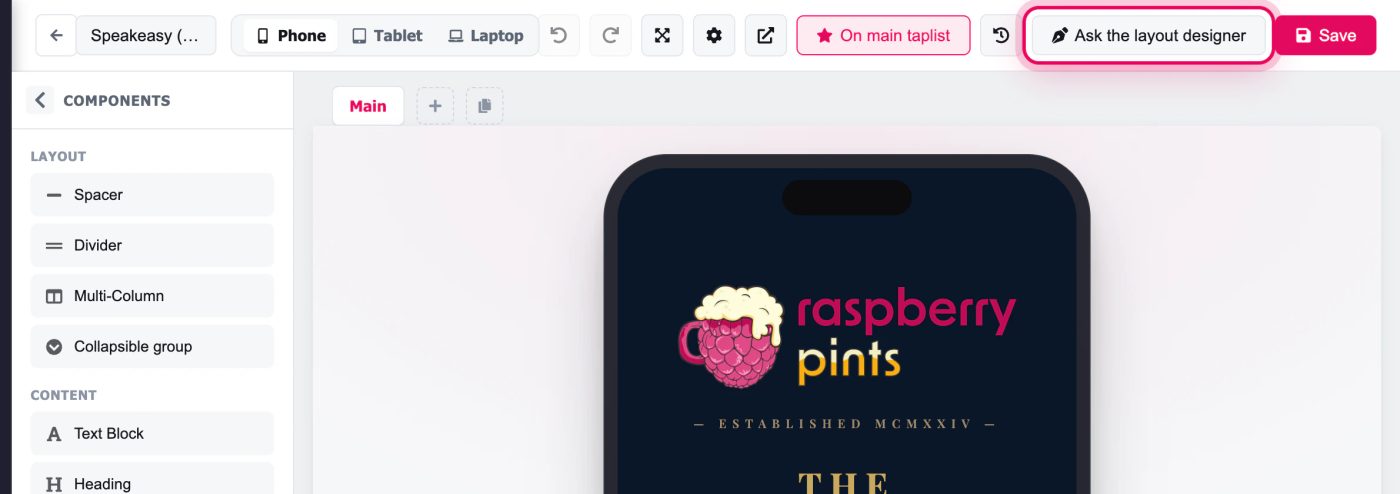
Click Ask the layout designer
It's in the toolbar, next to Save.
If you have unsaved edits, you're asked to Save your changes first, because the designer works from your saved layout. Click Save and continue.
Say what should change
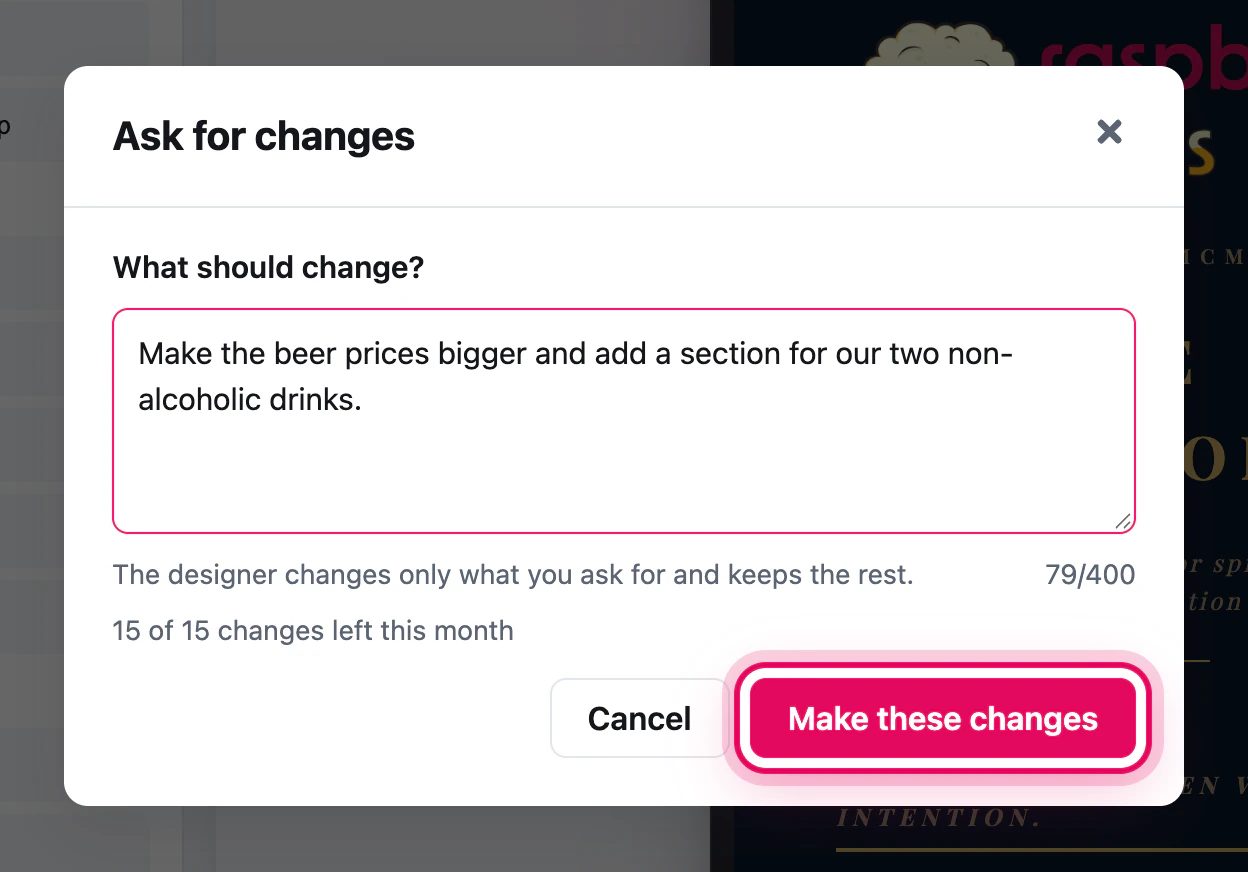
Type it under What should change? You have up to 400 characters. The dialog shows how many changes you have left this month.
Click Make these changes
Review the changes, then click Save
When the changes are in, a bar says The layout designer's changes are in. Review them, then save to keep them. Check the layout on each screen size, adjust anything by hand, then save.
The dialog says changes usually take under a minute.
Undo the designer's changes
Until you save, the bar above the editor has an Undo changes button. It puts the layout back the way it was before the designer changed it.
After you save, you can still go back to an earlier version from the layout's history. See Version history.
While the designer works
The layout is locked while it's being changed, so nothing you do can be lost or undo the designer's work. The editor shows The layout designer is changing this layout with the time so far, and Save is turned off.
You can work on other layouts and the rest of the admin meanwhile. Click Keep working while it changes to close the dialog. A notice in the sidebar shows Changing your layout, then Your changes are ready with Open it. Your browser may ask to show notifications, so it can tell you when they're ready if you're in another tab.
If the layout was saved or edited after you asked (in another tab, or by a teammate), you're told This layout changed while the designer worked. Choose Use the designer's version (you can still undo it before saving), or cancel to keep yours.
Your monthly changes
The Professional plan includes 15 changes a month, across all your layouts. They're counted separately from new drafts made with Describe it. When they're used up, you can still change anything yourself: select an item in the editor to edit it.
Your brewery can run one request at a time, either a new draft or a change.
Troubleshooting
| Message | What it means |
|---|---|
| This layout is too big for the layout designer to change. Try making it smaller first. | Remove some pages or items, save, then ask again. |
| A layout is already being drafted. Try again in a moment. | A draft or another change is still running. Wait for it to finish. |
| That layout was deleted, so its changes couldn't be opened. | The layout was deleted while the designer worked. |
Was this article helpful?