
Screens and your TV link
Your taplist has two links. Choose which layout your TVs show and which layout phones and computers show, and find the /tv link for any TV browser.
Your taplist can show one layout on the TVs in your taproom and a different one on guests' phones. The Screens card in the Display Editor is where you choose both, and where you copy your two links.
You need to be a Manager or the Owner to use the Display Editor.
Your two links
| Link | Looks like | Shows |
|---|---|---|
| Main taplist link | https://yourbrewery.taplists.raspberrypints.com/ | The layout in Main taplist. This is what phones, the QR code, computers and tablets open. |
| TV link | https://yourbrewery.taplists.raspberrypints.com/tv | The layout in TV screens, on any screen that opens it. |
TV devices pick the TV layout on their own, even on the main link. The Fire TV app, Android TV, Google TV and smart TV browsers from Samsung, LG and others are recognized, so you can give them either link. A laptop or a computer browser isn't treated as a TV, so use the /tv link there.
Choose a layout for each screen
Open the Display Editor
The Screens card is at the top of the page.
Pick a layout for TV screens
Choose any of your layouts, or Same as main taplist to show the same layout everywhere. TV layouts are listed first.
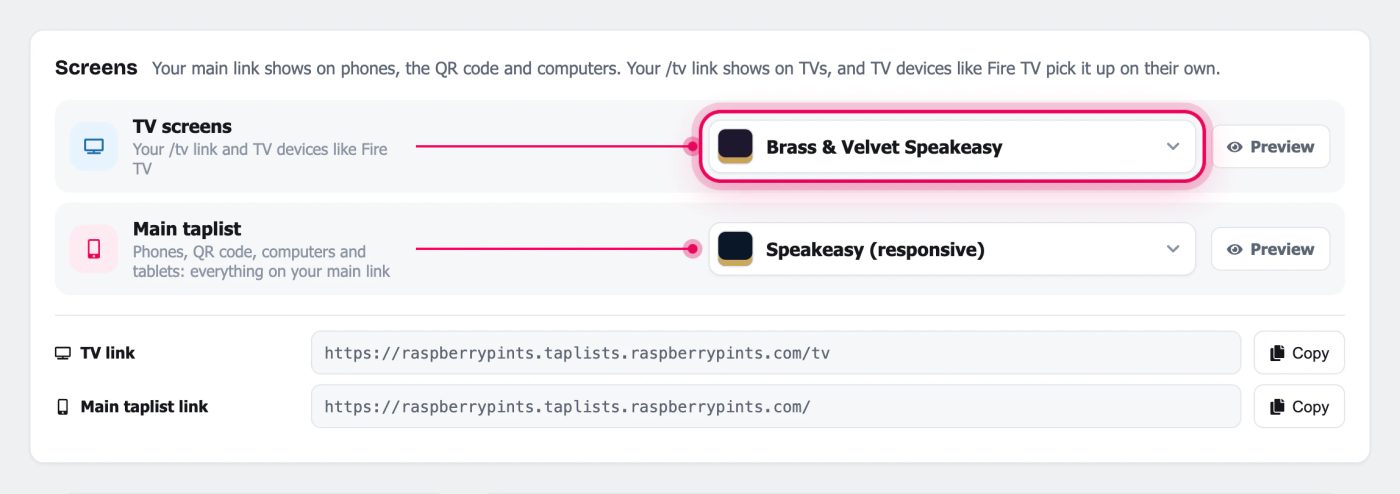
TV screens and Main taplist can show different layouts. Pick a layout for Main taplist
This is your active layout. Responsive layouts are listed first, because they fit phones, tablets and computers.
Check it with Preview
Each row has a Preview button that opens that link in a new tab.
The change is saved as soon as you pick a layout. There's no separate Save button.
When you save a brand-new TV layout and your TVs don't have one yet, the editor asks Show this on your TV screens? Click Show on TVs to put it there.
Copy your TV link
Below the two pickers, TV link and Main taplist link are shown in full. Click Copy next to the one you need.
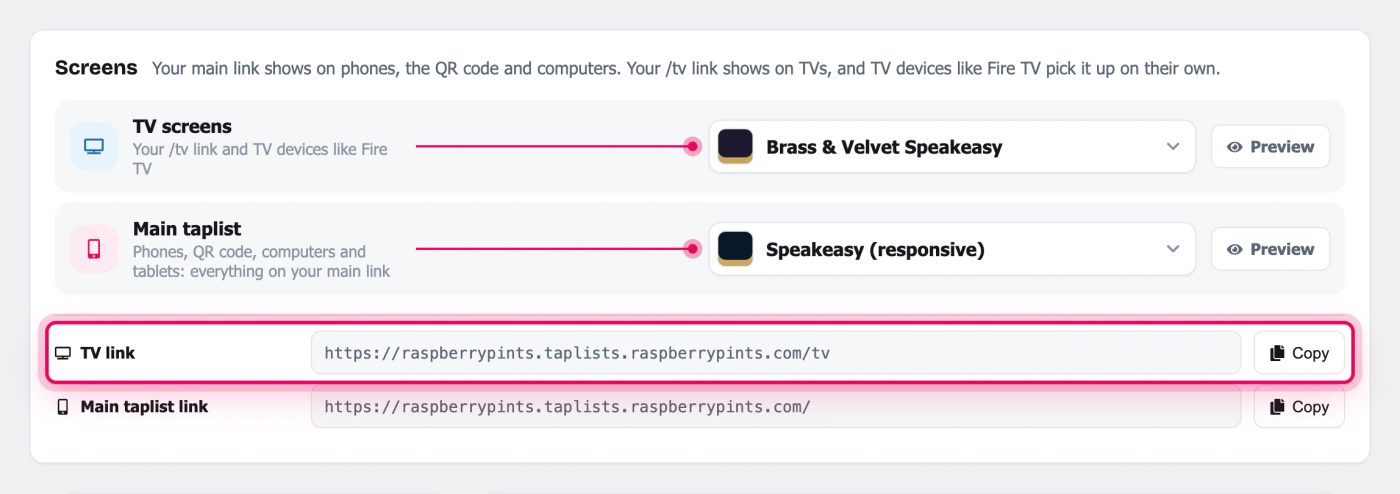
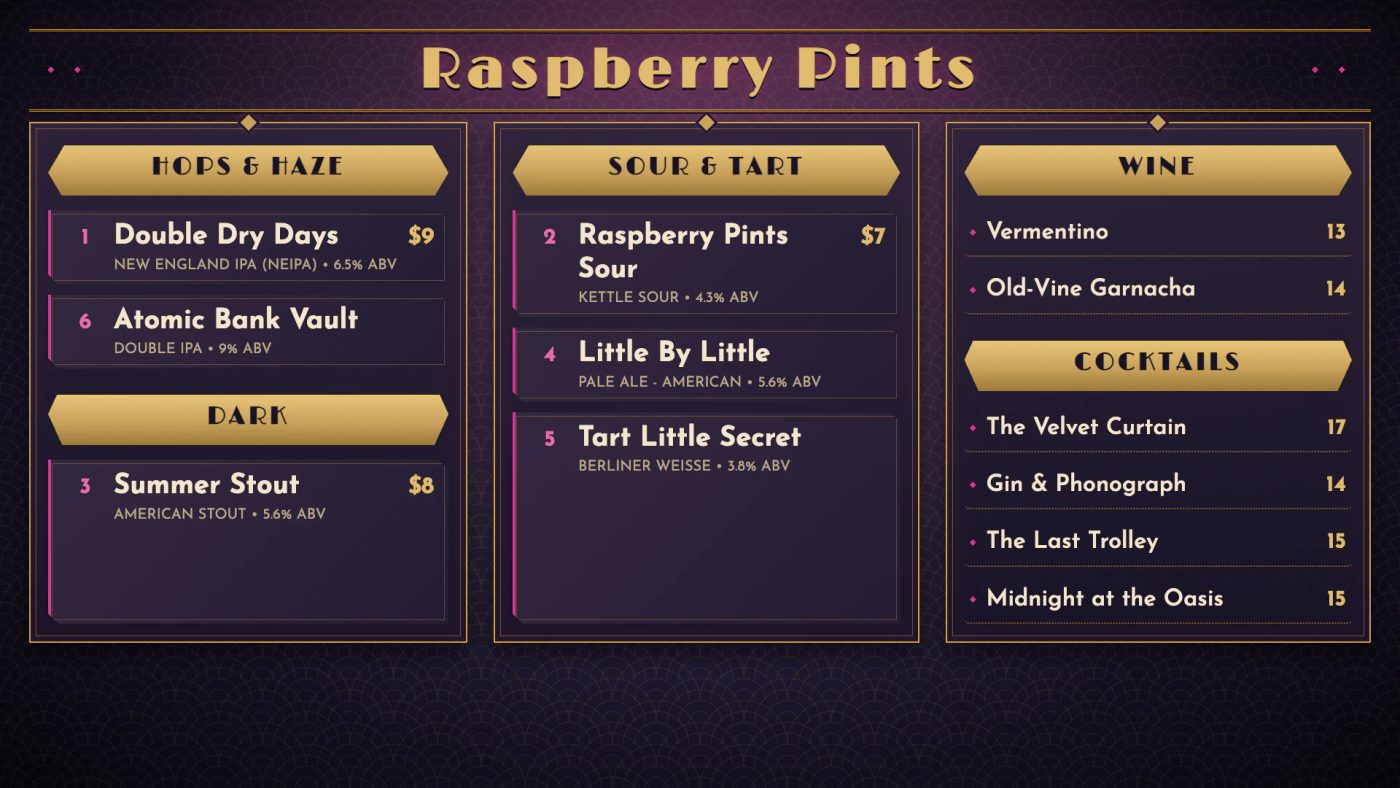
Open the TV link in the browser on the screen you want to use: a smart TV's web browser, a Raspberry Pi or a mini PC connected to the TV. It always shows the layout chosen for TV screens, whatever kind of device opens it.
When custom layouts are off
The Screens card only takes effect when your public taplist uses custom layouts. If Display Type in Settings is set to Grid Layout or Column Layout, every screen shows that layout, and the card says so. What you choose in the card applies as soon as you choose Custom Layout in Settings > Display.
Things to know
- A layout on your TV screens can't be deleted. Put another layout on the TVs first.
- Your taplist needs to be public for customers' phones, QR codes and TVs that aren't signed in. See Make your taplist public.
- On the Professional plan, open screens update as soon as you make a change. On other plans, they check for changes every minute.
- For a TV mounted on its side, make a TV layout and choose Vertical. See Layout types.
Was this article helpful?