
Embed your taplist on your website
Add your live taplist to your own website with a short embed code. Choose a list or grid, colors, font and fields, then paste the code into your site.
The embed shows what's on tap right on your own website, and keeps it up to date while visitors have the page open. You set it up on the Embed page, copy a few lines of code, and paste them into your site.
You need to be a Manager or the Owner to open the Embed page.
Set up the embed
Open Embed in the sidebar
The Embed Generator shows a live preview of your taplist as it will look on your site.
Choose how it looks
- Layout: List or Grid.
- Theme: Light, Dark, Transparent (uses your site's background and text color), or Custom to pick the background, card, text and accent colors.
- Font: Inherit from site uses your website's font, or pick one from the list.
- Max Height: Auto fits all your taps, or choose a height and the embed scrolls inside it.
- Refresh: how often it checks for changes while the page is open: 1 min, 5 min, 10 min or Never.
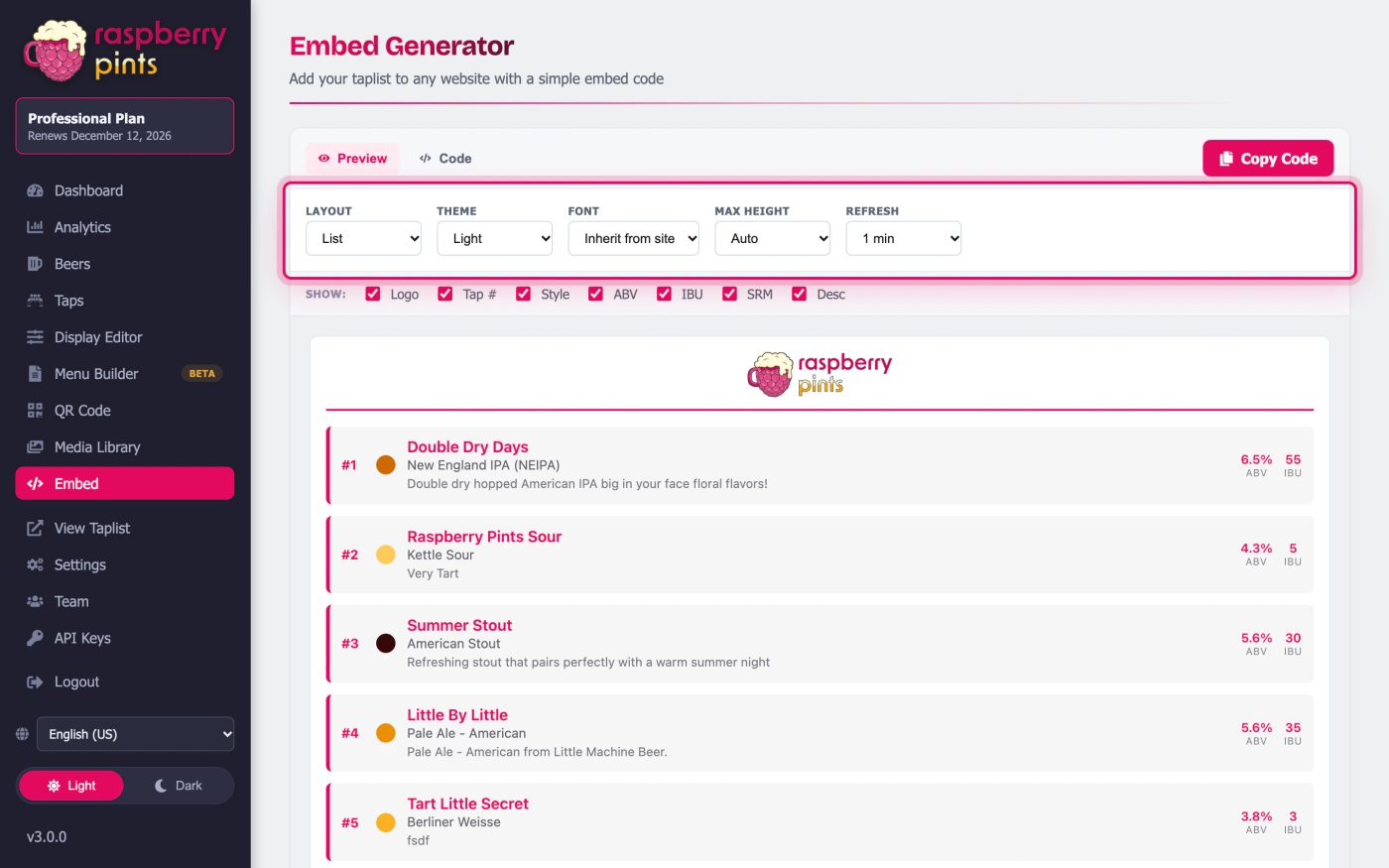
Choose what to show
Next to Show:, tick the fields you want: Logo, Tap #, Style, ABV, IBU, SRM and Desc (description).
Click Copy Code
To see the code first, click Code.
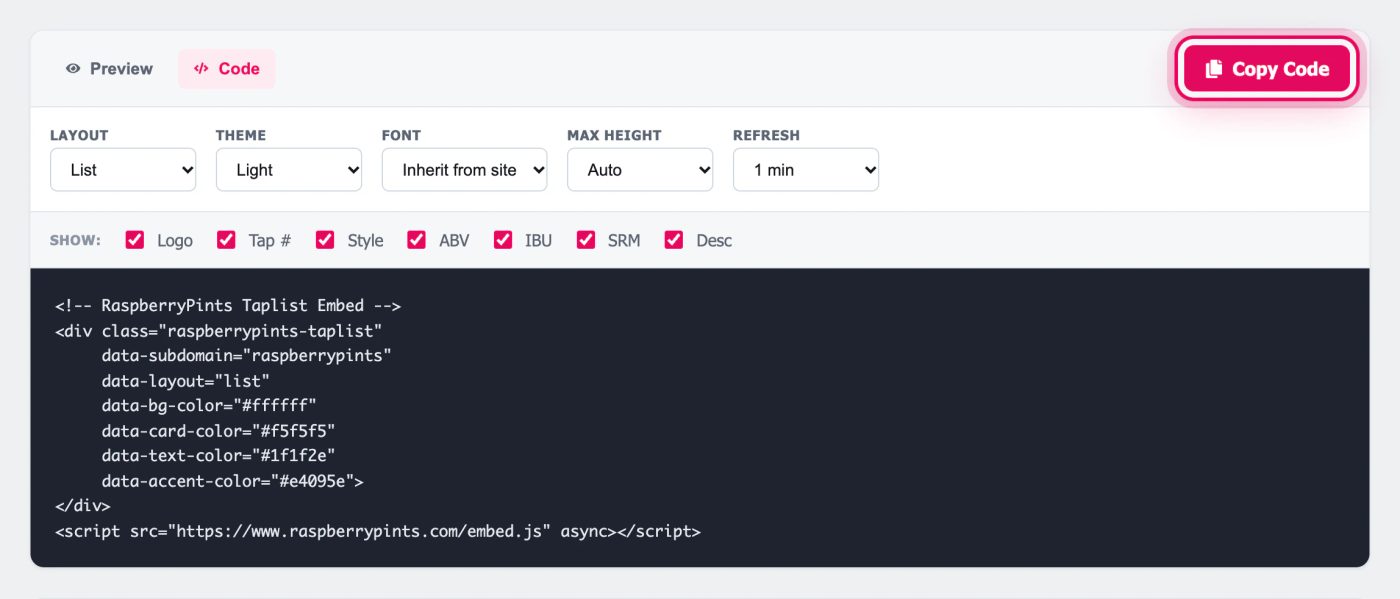
Paste it into your website
Add the
scriptline to your site's header or footer, and put thedivwhere you want the taplist to appear.
The Embed page doesn't save your choices. They're all in the code you copy. To change the look later, set it up again and replace the code on your site.
Where to paste it
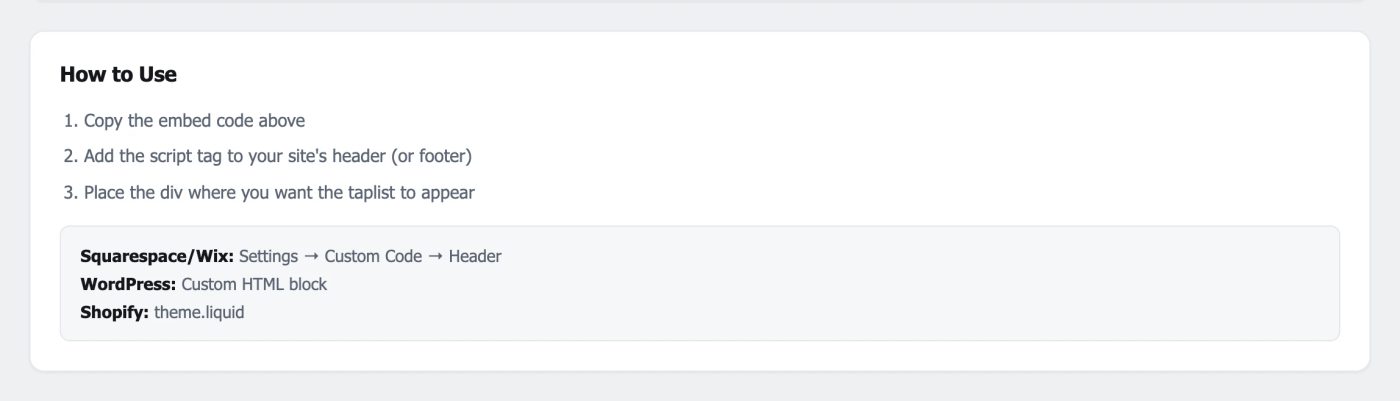
The How to Use card on the Embed page has pointers for popular website builders:
| Website builder | Where the code goes |
|---|---|
| Squarespace or Wix | Settings > Custom Code > Header |
| WordPress | A Custom HTML block |
| Shopify | theme.liquid |
Things to know
- Your taplist must be public. While it's private, the embed shows an error on your site, and the Embed page shows Website embeds need a public taplist with a Make public button. See Make your taplist public.
- It needs an active Basic or Professional plan. If your plan lapses, the embed shows a message asking you to upgrade instead of your taps.
- The embed shows your beers, not your Display Editor layout. It has its own list and grid styles. To show your full taplist design on your own domain, see Use a custom domain.
Was this article helpful?