
Beer pages and beer QR codes
Give every beer its own shareable page, print a QR code for cans, labels and table tents, and use one barcode for both retail scanning and the beer page.
Every beer can have its own page: a phone-friendly page with the beer's name, style, ABV, IBU, color and tasting notes, branded with your logo and colors. It also says when the beer is pouring now and on which tap. Each beer gets a QR code that opens its page, for can labels, bottle labels, table tents or social posts.
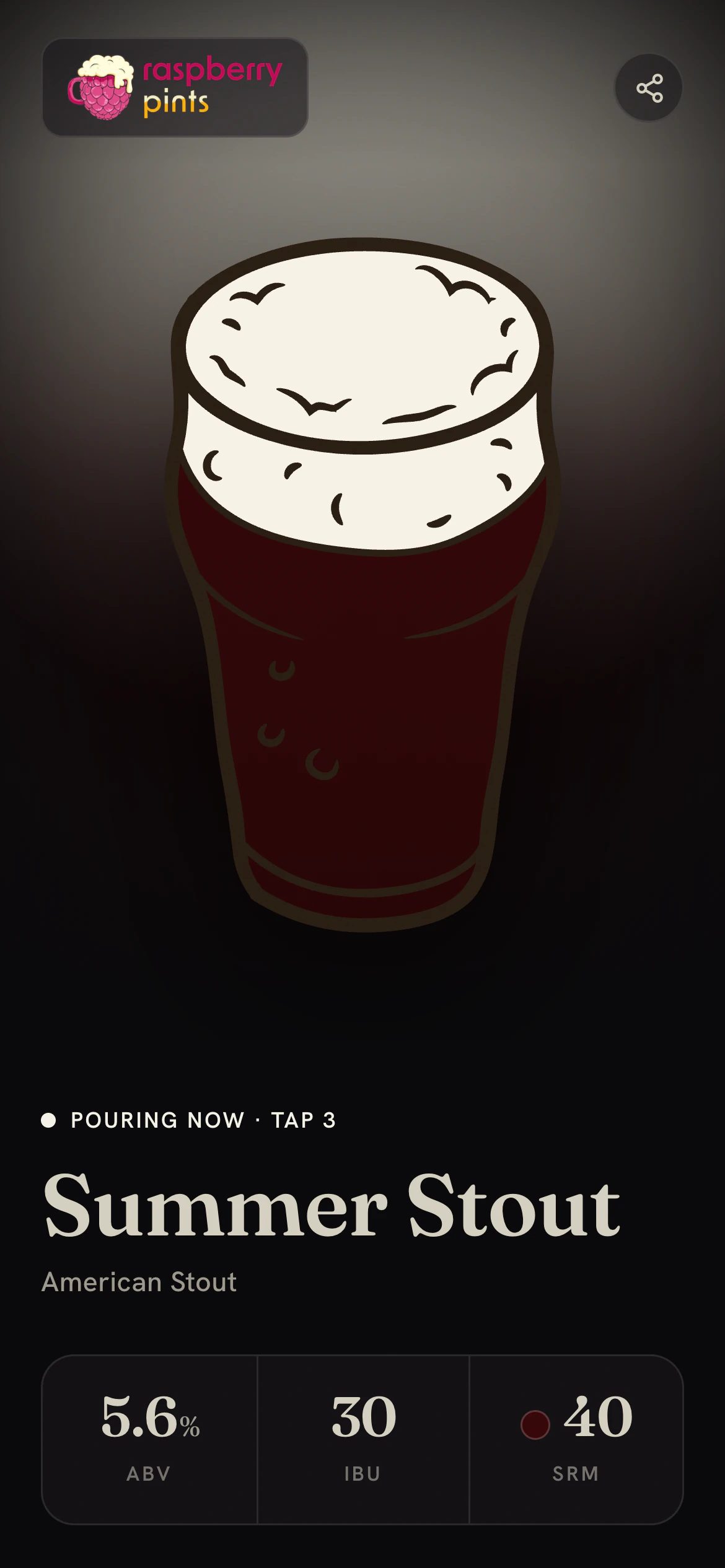
Open a beer's page
On the Beers page, click the link button on a beer (View beer page). The page opens in a new tab, so you can copy its address or check how it looks.
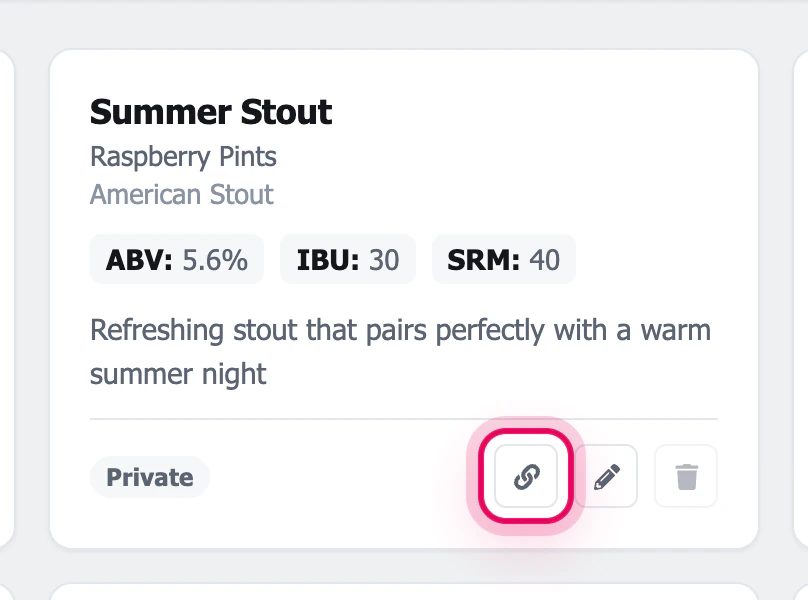
The beer doesn't have to be marked public to have a page.
On the page, guests can tap the share button to send the link, and See the full taplist to open your taplist. If the beer has an Untappd link, View on Untappd appears too.
Get a beer's QR code
Open the beer
On the Beers page, click the edit button on the beer. The Beer page and label section is near the bottom of the form.
Pick a Preset
Can label, Social or Table tent. Can label is made for small prints on cans and labels.
Choose colors and logo
Set Code color and Background, and tick Show logo in the center to add your logo.
Download it
Download SVG gives a vector file for label printers. Download PNG exports at high resolution for print. Copy link copies the address the code opens.
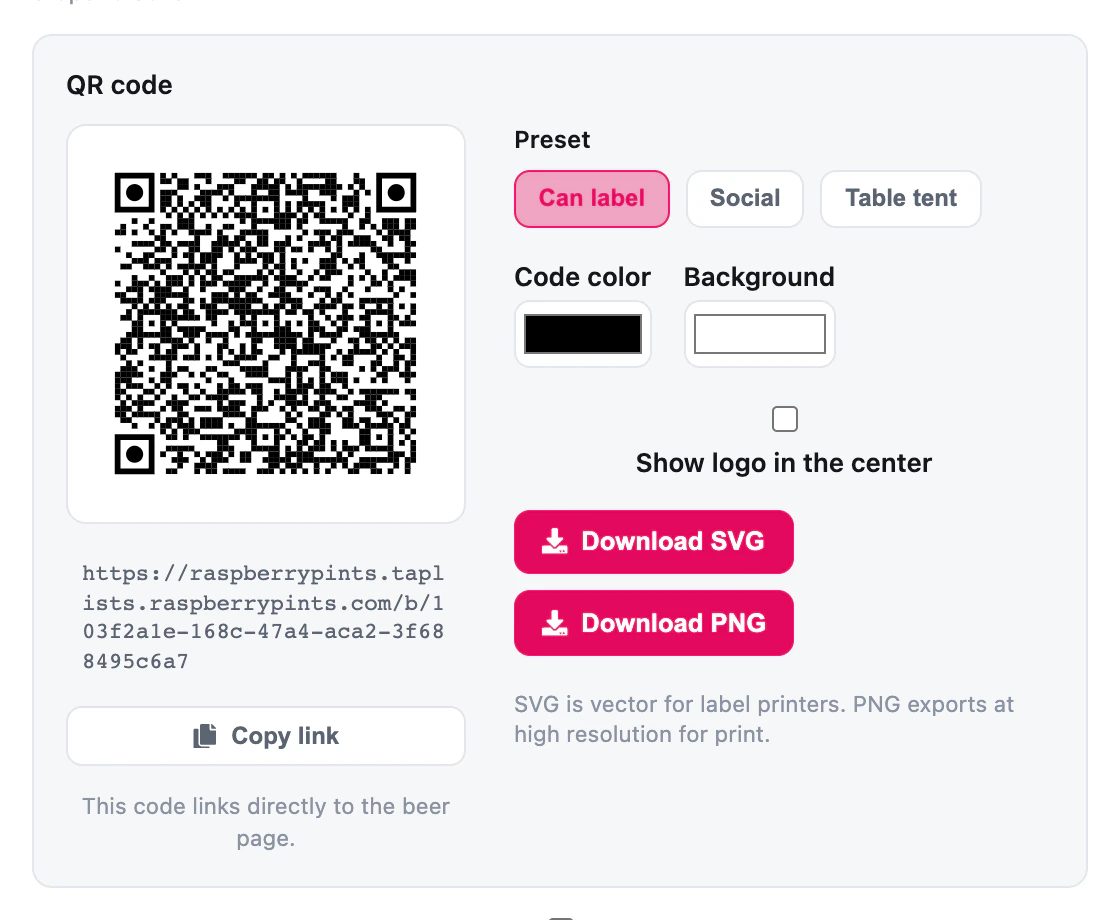
A new beer gets its code after you save it the first time: until then the section says Save this beer to generate its QR code.
Use your retail barcode (GTIN)
If your cans or bottles have a barcode, you can add its number so one printed code works as both the retail barcode and the link to the beer page. This uses GS1 Digital Link: store scanners read the barcode number, and phones open the beer page.
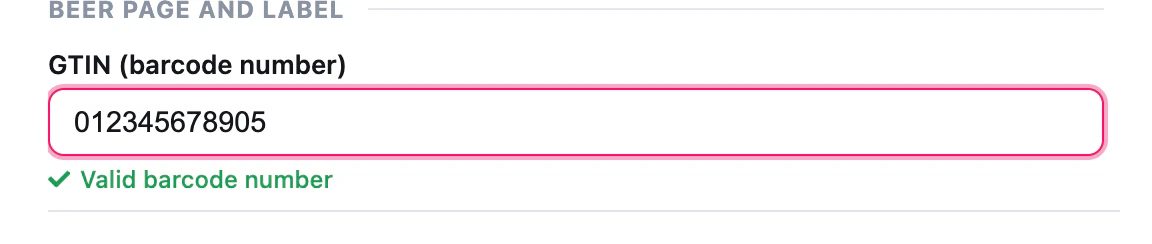
Type the barcode number in GTIN (barcode number)
It takes UPC-A, EAN-13 or GTIN-14 numbers. When the number checks out, you'll see Valid barcode number.
Click Update Beer
Save the beer so the barcode is linked to it.
Download the code again
Below the code it now says This code links through your barcode (GS1 Digital Link) to the beer page. Download the new SVG or PNG for your label.
Without a GTIN, the code says This code links directly to the beer page.
Picture on the beer page
The beer's image is the hero picture at the top of its page. Without one, the page shows a glass in the beer's color. Under Image display, choose Fit to show the whole image or Fill to crop it to fill the space.
Things to know
- Beer pages use your logo and your primary and secondary colors from Settings.
- If your plan changes from Professional, beer pages and beer QR codes stop working: anyone who opens one sees Beer not found.
Was this article helpful?