
Put your taplist on a TV
Get your taplist onto the TV in your taproom with the Fire TV app or any screen with a web browser, then pick a TV layout and check it stays up to date.
Your taplist runs on any TV that can open a web page, and on Fire TV with the RaspberryPints app. This guide gets one TV going. Each step links to the detailed guide.
Before you start
- Make your taplist public. A TV isn't signed in to your admin, so it can only show a public taplist. See Make your taplist public.
- Know your subdomain. It's the first part of your taplist address:
yourbreweryinhttps://yourbrewery.taplists.raspberrypints.com. You'll find it under Settings > Display > Basic Info. - Put a beer on a tap, so there's something to show.
Get it on the screen
Choose how the TV will show it
- A Fire TV device: install the RaspberryPints app from the Amazon Appstore. You set it up once with the remote, and it keeps the screen awake.
- A smart TV's web browser, a Raspberry Pi or a mini PC: use your TV link, which is your taplist address with
/tvon the end.
Connect the Fire TV app
Open the app, type only your subdomain, and select Connect to Taplist. The app remembers it. See Set up the Fire TV app.
Or open your TV link in the browser
Type your TV link,
https://yourbrewery.taplists.raspberrypints.com/tv, into the browser on the screen, then make the browser full screen. You can copy the link from the Screens card in the Display Editor.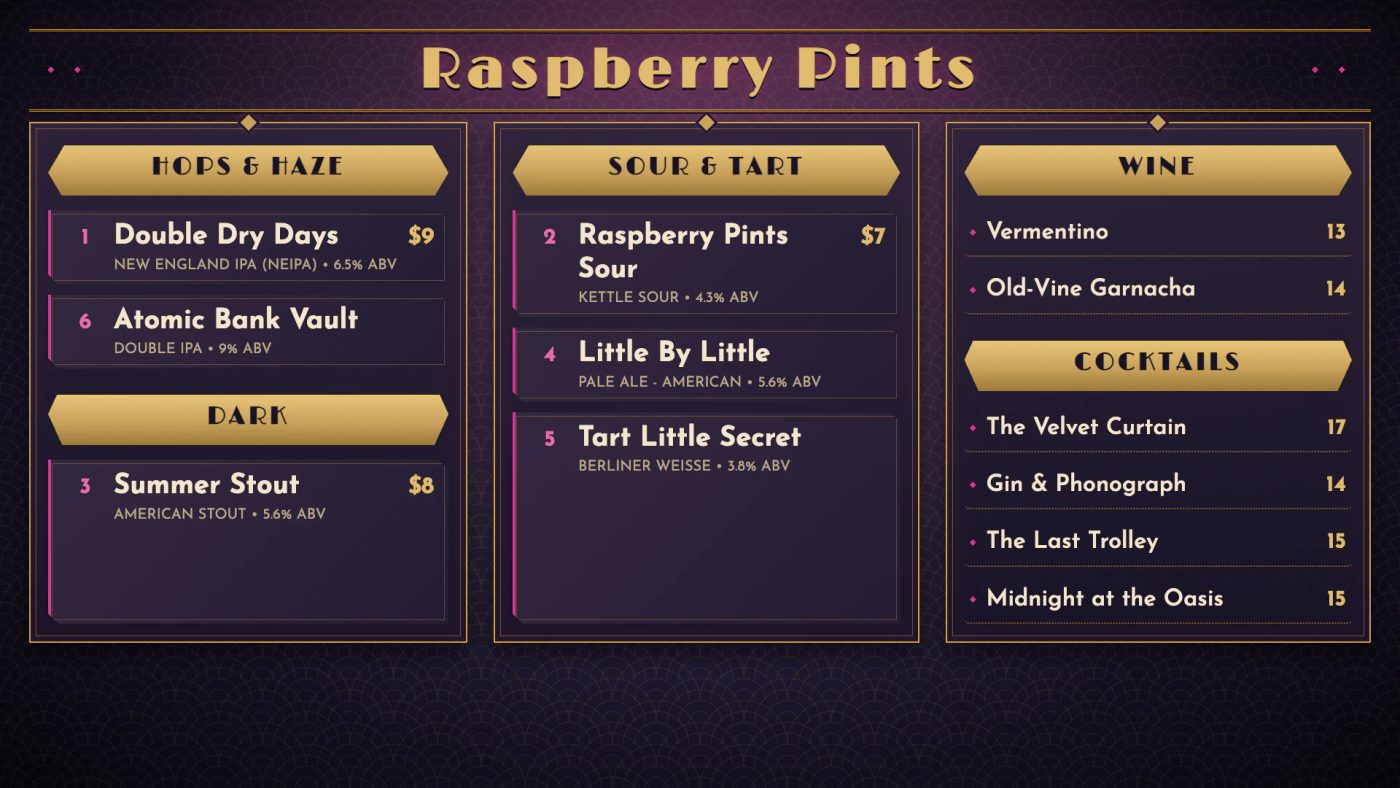
Check it from across the room
If the text is too small, raise Font Scale for TV Display in Settings > Display. It works with the Grid and Column layouts.
Give your TVs their own layout
On the Basic and Professional plans, your TVs can show a layout made for TVs while phones keep your main taplist. Make a TV layout in the Display Editor, horizontal or vertical, and choose it for TV screens on the Screens card. Fire TV and smart TV browsers pick it up even on your main link. A computer, mini PC or Raspberry Pi needs the /tv link.
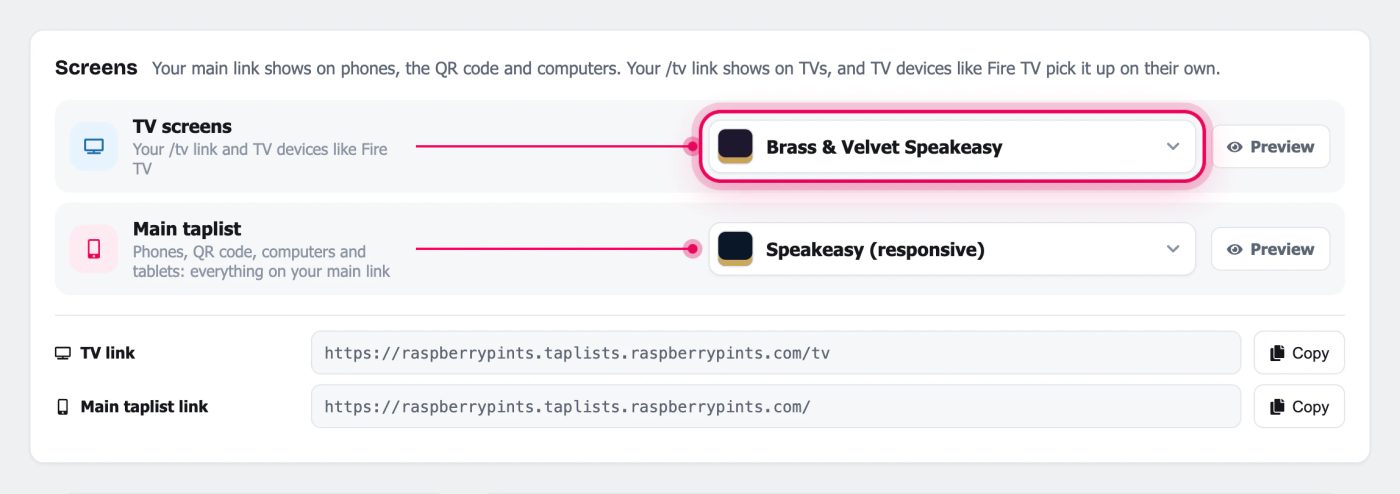
See Screens and your TV link and TV and responsive layouts.
It keeps itself up to date
You don't need to touch the TV after a change. On the Professional plan, open screens update in real time. On the Free and Basic plans, they check for changes every 60 seconds.
If something's wrong
- The TV shows an error: see Your link, QR code or embed shows an error or Fire TV app messages.
- The wrong layout shows: see The TV shows the wrong layout.
- A change isn't showing: see My taplist isn't updating.
Was this article helpful?