
The TV shows the wrong layout
Your TV shows the phone layout, the grid instead of your custom layout, or "Custom Layout Not Configured". Check Display Type, the Screens card and the TV link.
Which layout a screen shows depends on three things: your Display Type in Settings, the layouts picked on the Screens card in the Display Editor, and the link the screen opens. When a TV shows the wrong thing, one of these is usually the cause.
You need to be a Manager or the Owner to change Settings and the Display Editor.
Symptoms and causes
| What you see | Likely cause |
|---|---|
| The grid or column taplist instead of your custom layout, on every screen | Display Type isn't Custom Layout |
| Your phone layout on the TV | TV screens is set to Same as main taplist, or the screen isn't recognized as a TV |
| The TV layout on a computer or laptop | That computer opens your /tv link |
| Custom Layout Not Configured | Display Type is Custom Layout, but no layout is chosen for Main taplist |
| An older version of your layout | The latest changes aren't saved, or the screen hasn't picked them up yet |
Steps to fix
Check the Display Type
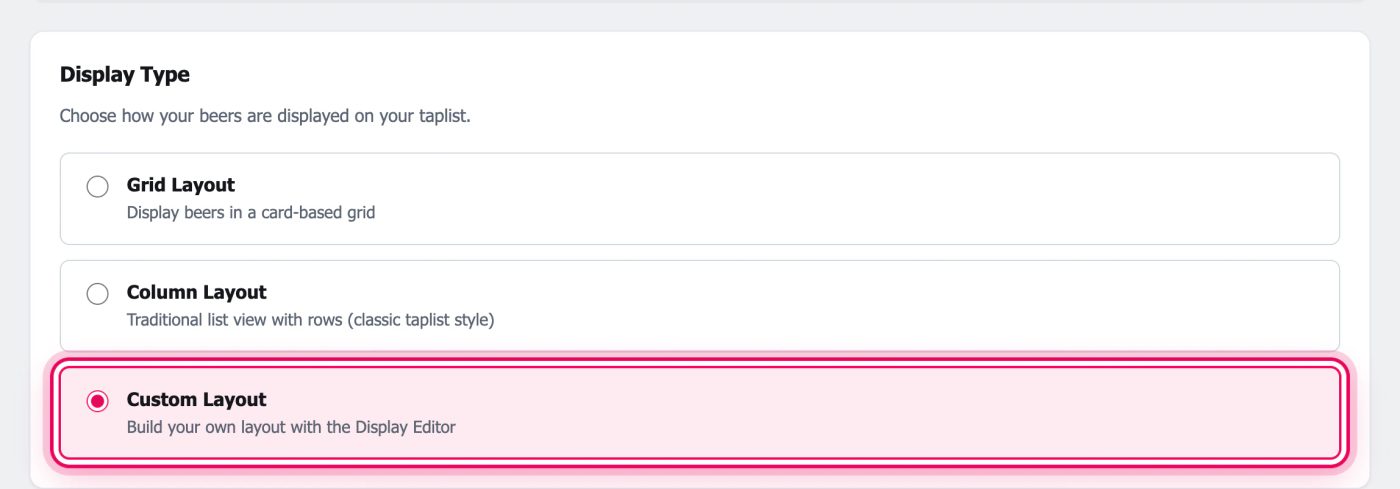
Open Settings. On the Display tab, under Display Type, choose Custom Layout and click Save Settings. While it's set to Grid Layout or Column Layout, every screen shows that, whatever the Screens card says.
Open the Display Editor and check the Screens card
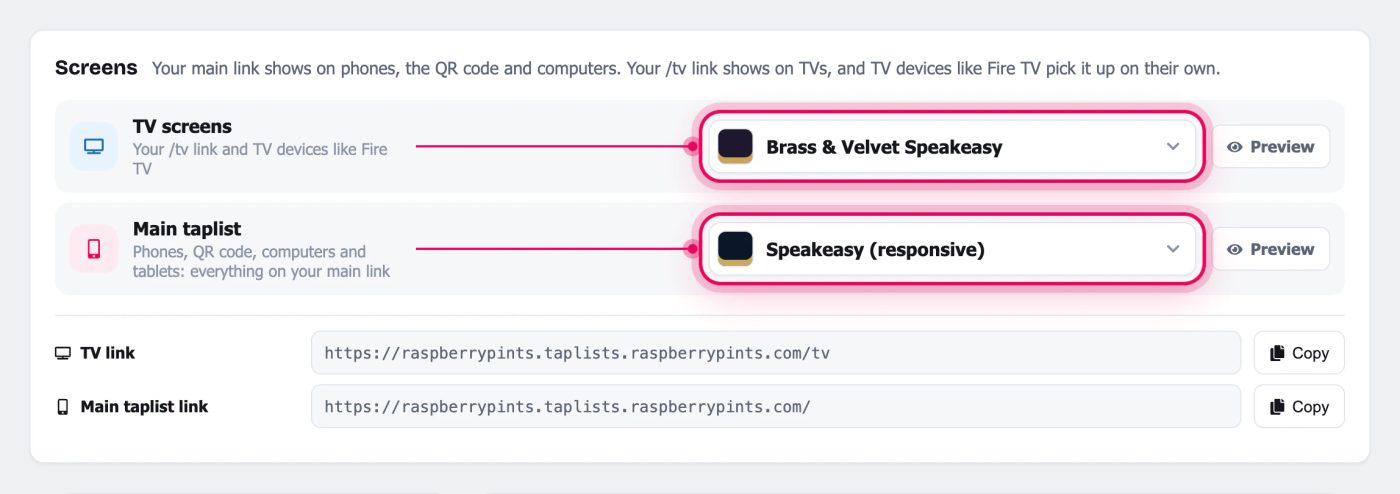
The Screens card is at the top of the page. TV screens is what your TVs show. Main taplist is what phones, the QR code and computers show.
Pick the right layout for TV screens
Choose your TV layout. Same as main taplist shows your main layout on the TVs too. The change is saved as soon as you pick it.
Make sure the TV opens your TV link
Copy the TV link from the Screens card and open it on the TV. Fire TV, Android TV, Google TV and smart TV browsers pick the TV layout even on your main link, but a computer, a mini PC or a Raspberry Pi browser doesn't. Those need the
/tvlink.
"Custom Layout Not Configured"
Your taplist shows Custom Layout Not Configured when Display Type is Custom Layout but there's no layout for your main taplist yet. Create a layout in the Display Editor, then choose it under Main taplist on the Screens card. Or set Display Type back to Grid Layout or Column Layout until your layout is ready. See Start from a template.
Still the old layout?
- Check the layout is saved. In the Display Editor, Save* means there are unsaved changes.
- On the Free and Basic plans, open screens check for changes every 60 seconds. On Professional, they update in real time.
- Reload the TV: press PLAY/PAUSE on the Fire TV remote, or reload the browser.
See My taplist isn't updating.
Vertical TVs
A TV mounted on its side needs a TV layout made as Vertical. See TV and responsive layouts.
If your plan has lapsed
Without an active Basic or Professional plan, the Display Editor and the Screens card are locked. See Your plan isn't active.
Was this article helpful?