
Add an announcement banner
Show rotating messages at the top or bottom of your taplist for specials, events and happy hours, with your own colors, alignment and timing.
The announcement banner puts a strip of text on your public taplist: tonight's special, a release date, happy hour times. Add one message or several, and the banner can rotate through them. It's on every plan, and owners and managers can set it up.
Set up the banner
Open Settings and click the Messages tab
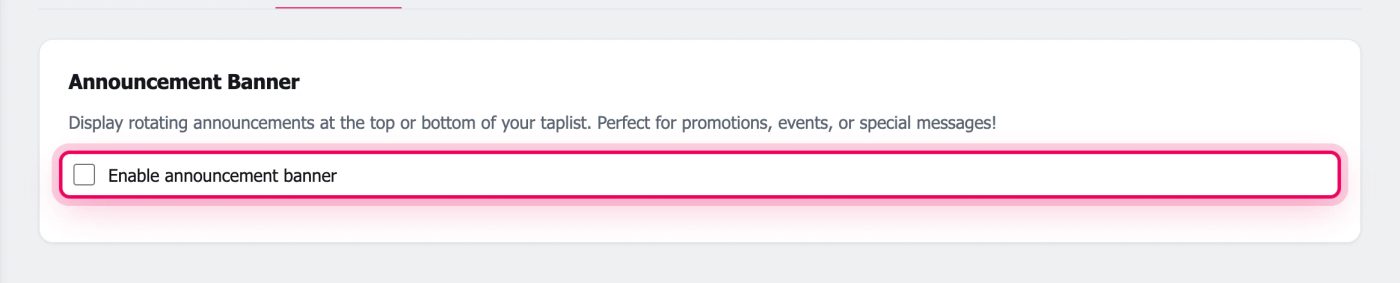
Tick Enable announcement banner
The banner's options appear below.
Choose a Banner Position
Pick Top of page or Bottom of page. If your taplist uses a custom layout, the position comes from the layout instead (see below).
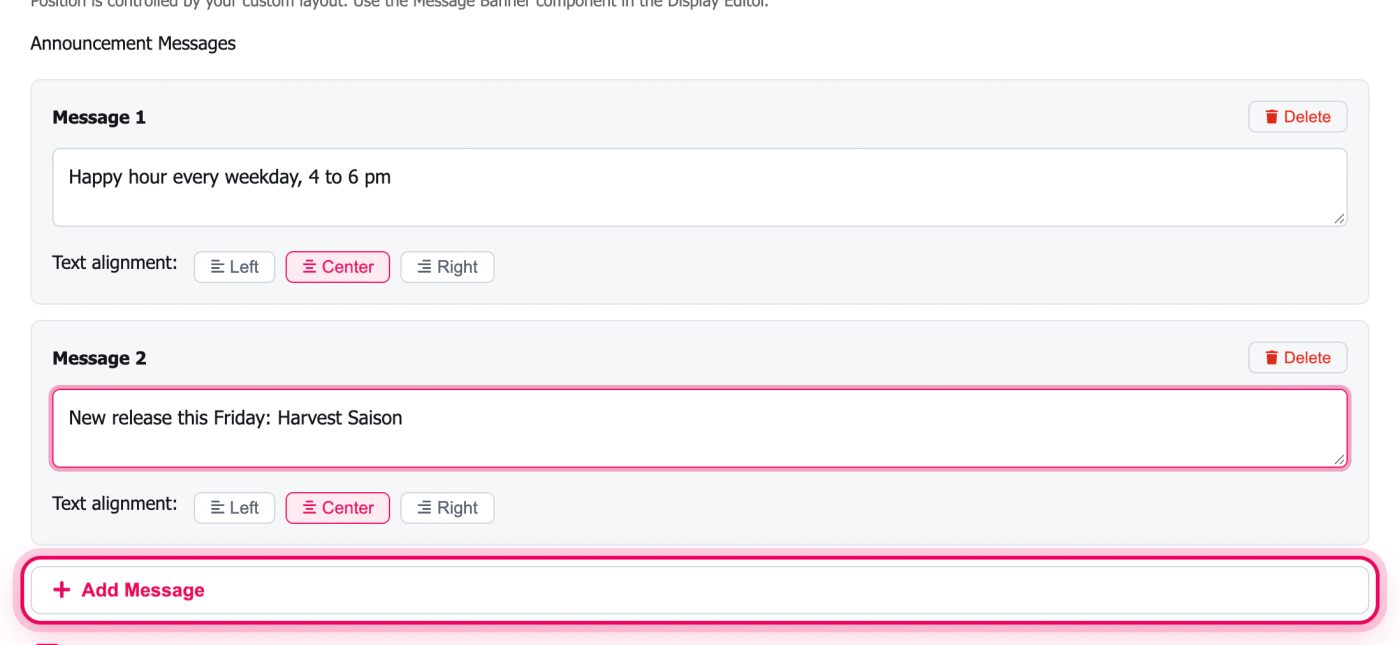
Type your message, then click Add Message for another
Type into the first message box, and choose Left, Center or Right for its alignment. Each Add Message adds another box. To remove one, click Delete above it.
Check the Preview
The preview shows each message in your chosen colors. With more than one message, use the Previous and Next arrows under it to step through them.

Click Save Settings
On the Professional plan the banner appears on open taplists in real time. On other plans, an open taplist picks it up within 60 seconds.
Rotation and timing
With two or more messages, Auto-rotate messages is ticked by default, and Message rotation speed (seconds) sets how long each message shows before the next one, from 3 to 60 seconds. When the banner rotates, small dots on the taplist let guests jump to a message.
Colors and shape
- Use theme colors is on by default. The banner uses your Primary Color as its background and your Secondary Color for the text. See Themes and settings.
- Untick it to pick your own Background Color and Text Color.
- Border Radius rounds the banner's corners, from square (0 px) up to 30 px.
With a custom layout
If your display type is Custom Layout, the Messages tab doesn't offer a position. Add a Message Banner item to your layout in the Display Editor and place it where you want. It shows the same messages you set up here, so you edit the text in one place. See Edit a layout.
Tips
- Keep each message short enough to read from across the room. Put long details on separate messages and let them rotate.
- Your messages aren't translated. The Public Display Language setting only changes the taplist's built-in labels.
- If you also show Untappd check-ins, they can't share the banner's position: put one at the top and the other at the bottom. See Show Untappd check-ins.
Troubleshooting
The banner doesn't show. Check that Enable announcement banner is ticked, that at least one message has text, and that you clicked Save Settings. With a custom layout, make sure the layout has a Message Banner item.
Messages don't rotate. Auto-rotate messages only appears once you have two or more messages. Check that it's ticked, then save.
Was this article helpful?