
Keg levels and kicked kegs
See how much is left in each keg, show keg levels on your taplist, pick the keg icon, mark kicked kegs and see when a keg is likely to run out.
Every beer you put on tap starts with the keg size you chose. RaspberryPints keeps a count of what's left, shows it in the admin and, if you want, on your taplist.
How the level is counted
A keg starts full when you tap it. The count goes down when pours are recorded against the tap through the Partner API, for example by a point-of-sale or flow-meter integration. When the count reaches zero, the keg is kicked.
If nothing records pours for a tap, its keg stays at 100% until you untap it. Keg sizes and pour counts are estimates, so treat the level as a guide.
Keg level on the Taps page
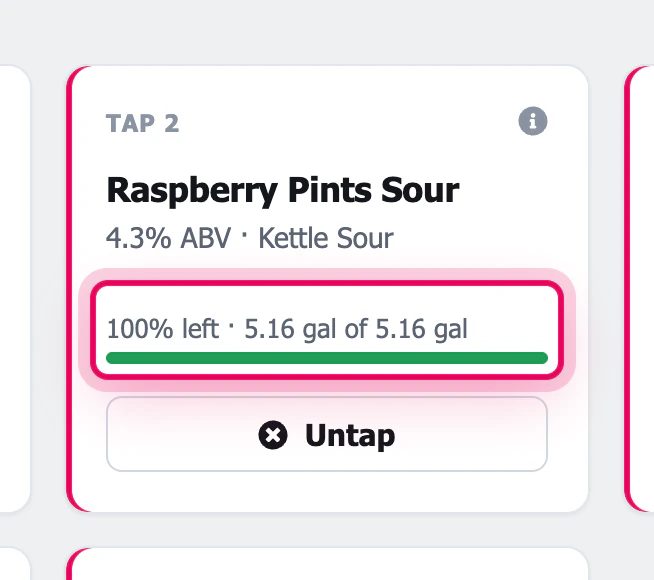
Each tapped card shows the percentage left, the amount left and the keg size, with a bar underneath. When a keg is down to 20% or less, the card shows a Low tag and the bar turns red.
Show keg levels on your taplist
How you turn this on depends on your display type (Settings > Display > Display Type):
- Grid Layout or Column Layout: in Settings > Display, the Keg Level section has Show keg level on the taplist. Tick it and click Save Settings.
- Custom Layout: the Keg Level section is hidden. Turn on Show Keg Level or Keg Level Icon on the tap items in your layout instead. See Edit a layout.
Settings is open to Managers and Owners.
Choose the keg icon
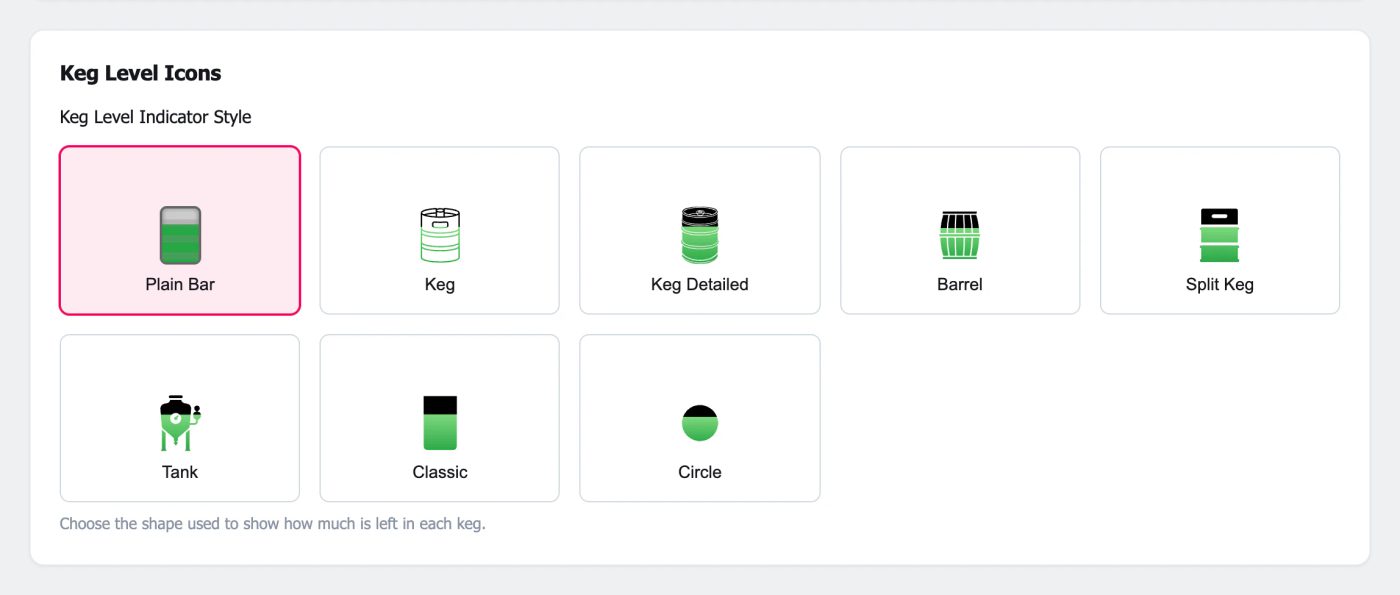
In Settings > Appearance, Keg Level Icons sets the shape of the level indicator: Plain Bar, Keg, Keg Detailed, Barrel, Split Keg, Tank, Classic or Circle. Click one, then Save Settings.
Mark kicked kegs
By default, a keg whose count reaches zero stays on your taplist at 0%. To mark it instead:
Open Settings, then the Display tab
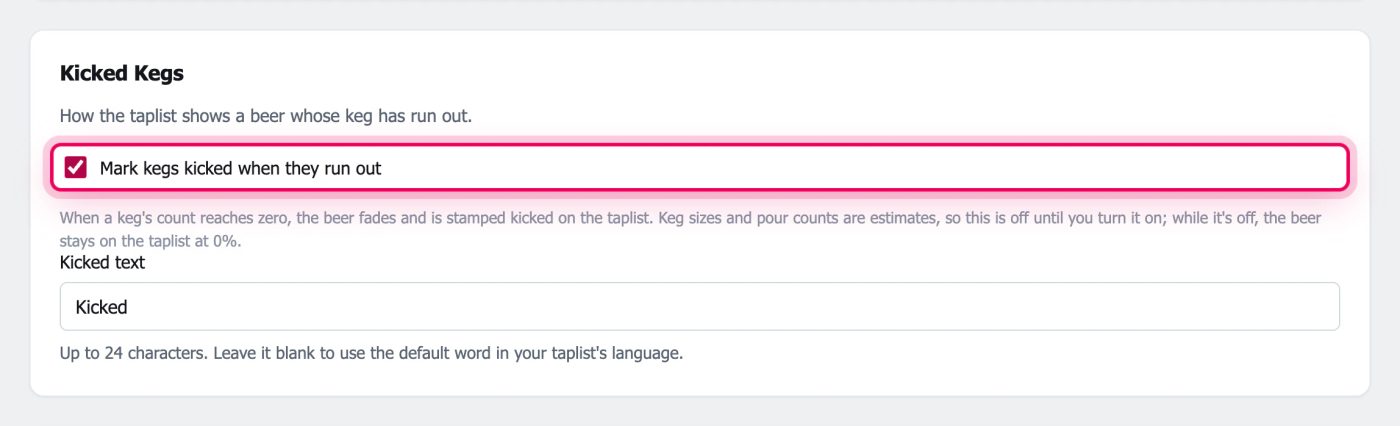
Tick Mark kegs kicked when they run out
It's in the Kicked Kegs section. A Kicked text field appears.
Change the stamp text if you like
Up to 24 characters. Leave it blank to use the word for "kicked" in your taplist's language.
Click Save Settings
From now on, a beer whose keg runs out fades and is stamped with your text on the taplist.
The beer stays stamped until you untap it and put the next keg on.
Estimated kick dates
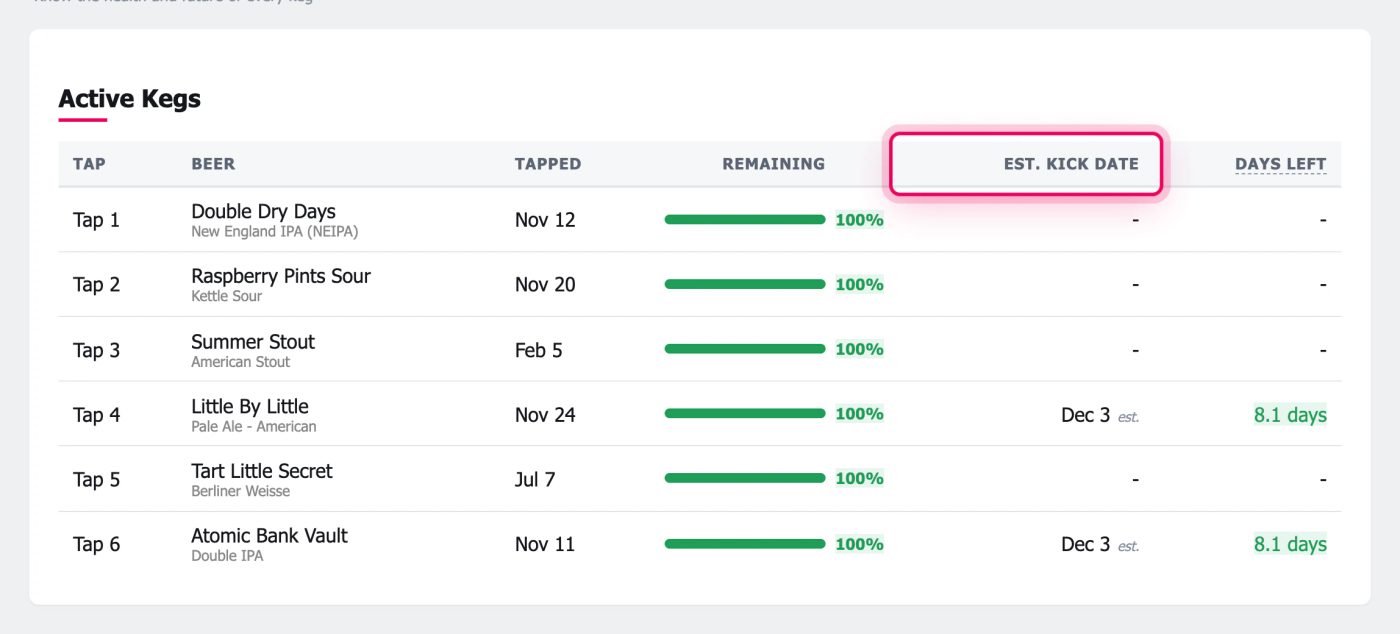
On the Professional plan, the Active Kegs table in Analytics shows an Est. Kick Date and Days Left for each keg.
- For kegs with recorded pours, the estimate comes from average daily use.
- For kegs without pours, it comes from how long similar kegs have lasted on that tap and for that style, and is marked est.
Get an email when a keg runs low
On the Professional plan, Managers and Owners can get an email when a keg is tapped, runs out or drops below 10%, 20% or 30%. See Email alerts.
Was this article helpful?