
Languages, units and time zone
Choose the admin panel's language for yourself, the language of your public taplist's labels, and your brewery's measurement units and time zone.
RaspberryPints has four settings for where you are and who you serve. Each one changes something different:
| Setting | Where | What it changes | Who it affects |
|---|---|---|---|
| Admin language | Bottom of the admin sidebar | The admin panel's built-in labels | Only you, for this brewery |
| Public Display Language | Settings > Display > Basic Info | Your public taplist's built-in labels | Everyone who views your taplist |
| Measurement System | Settings > Advanced | How keg volumes are shown in the admin | Everyone on your team |
| Brewery Timezone | Settings > Advanced | How analytics group pours by day and hour | Everyone on your team |
None of these translate or convert what you've typed yourself. Beer names, descriptions, announcement messages, text in your Display Editor layouts and your brewery name always show exactly as you entered them.
Languages
Both language pickers offer the same eight languages:
- English (US), English (UK), English (Canada), English (Australia)
- Français (France), Français (Canada)
- Deutsch
- Español
Change the admin language
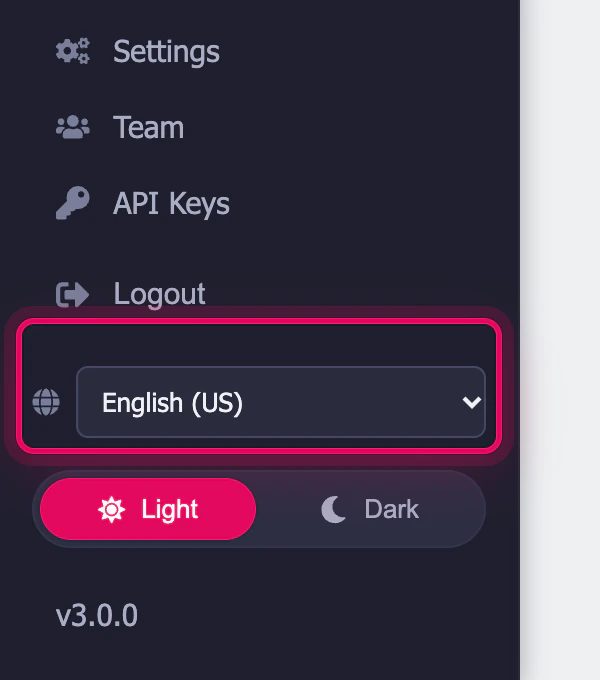
Pick a language in the picker at the bottom of the sidebar, above the Light and Dark switch. The admin switches straight away and remembers your choice for this brewery. It doesn't change anyone else's admin or your public taplist, so each person on your team can use their own language.
Change your taplist's language
Open Settings
The Display tab opens first.
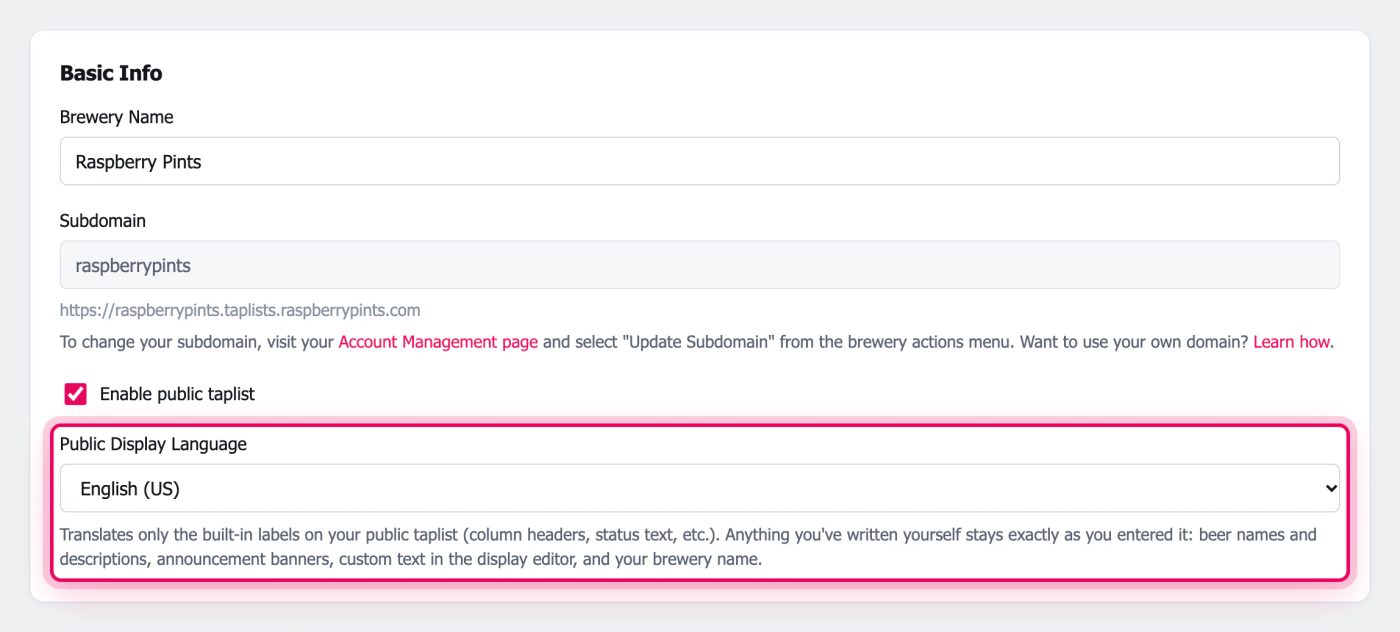
Choose a Public Display Language
It's in Basic Info, under Enable public taplist.
Click Save Settings
This translates the built-in words on your taplist, such as column headers, "Kicked" on an empty keg and "No beer assigned". If you've left the Kicked text setting blank, the kicked stamp uses the default word in this language.
Measurement system
Measurement System sets how volumes are shown across the admin, for example keg sizes on the Taps page and pour volumes in Analytics.
Open Settings and click the Advanced tab
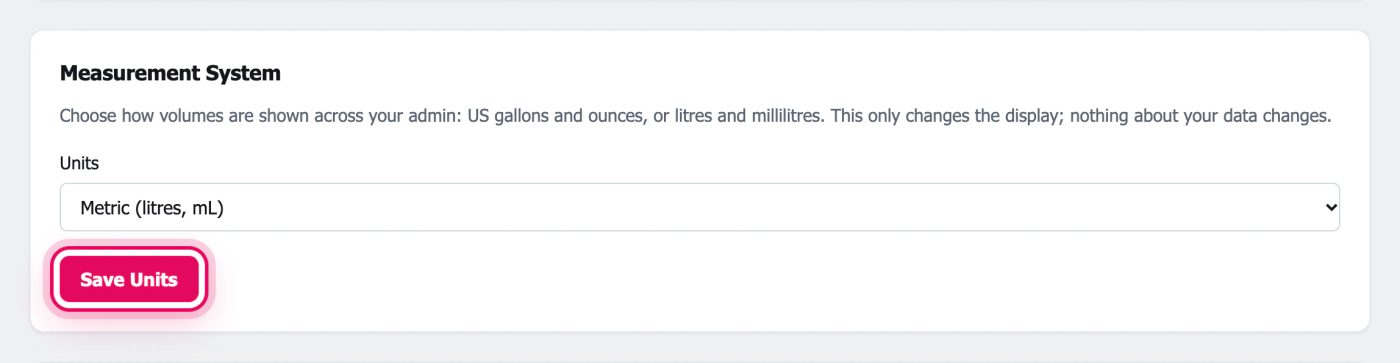
Choose your Units
Pick US (gallons, oz) or Metric (litres, mL).
Click Save Units
This section saves on its own. Save Settings doesn't save it.
Switching units only changes how volumes are shown. Nothing about your kegs or pour data changes.
Brewery timezone
Brewery Timezone tells Analytics your local time, so pours are grouped by the day and hour they were actually poured. See Analytics.
Open Settings and click the Advanced tab
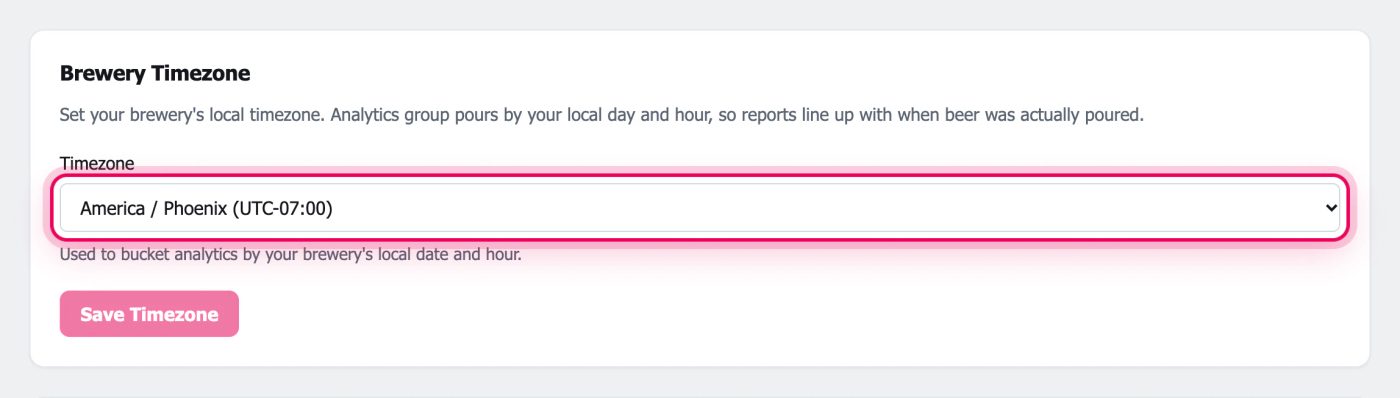
Choose your Timezone
Time zones are grouped by region: Common, North America, Europe, Australia & New Zealand, Asia and Other.
Click Save Timezone
Like units, the time zone saves on its own.
Who can change these
Anyone on your team can change their own admin language. Public Display Language, Measurement System and Brewery Timezone are on the Settings page, so only owners and managers can change them. All four are available on every plan.
Was this article helpful?