
The Tap list on print menus
Fill a print menu with every beer on tap in one block. Choose which taps and styles, the order, columns and details, and how the list flows onto new pages.
The Tap list is the item that makes a print menu live. It lists every beer on tap, from your taps, in one block. When your kegs change, the list changes with them, and the next print or PDF shows the new beers. Every print menu template is built on one.
Change a Tap list
Click the Tap list on the page
Its toolbar appears at its top right.
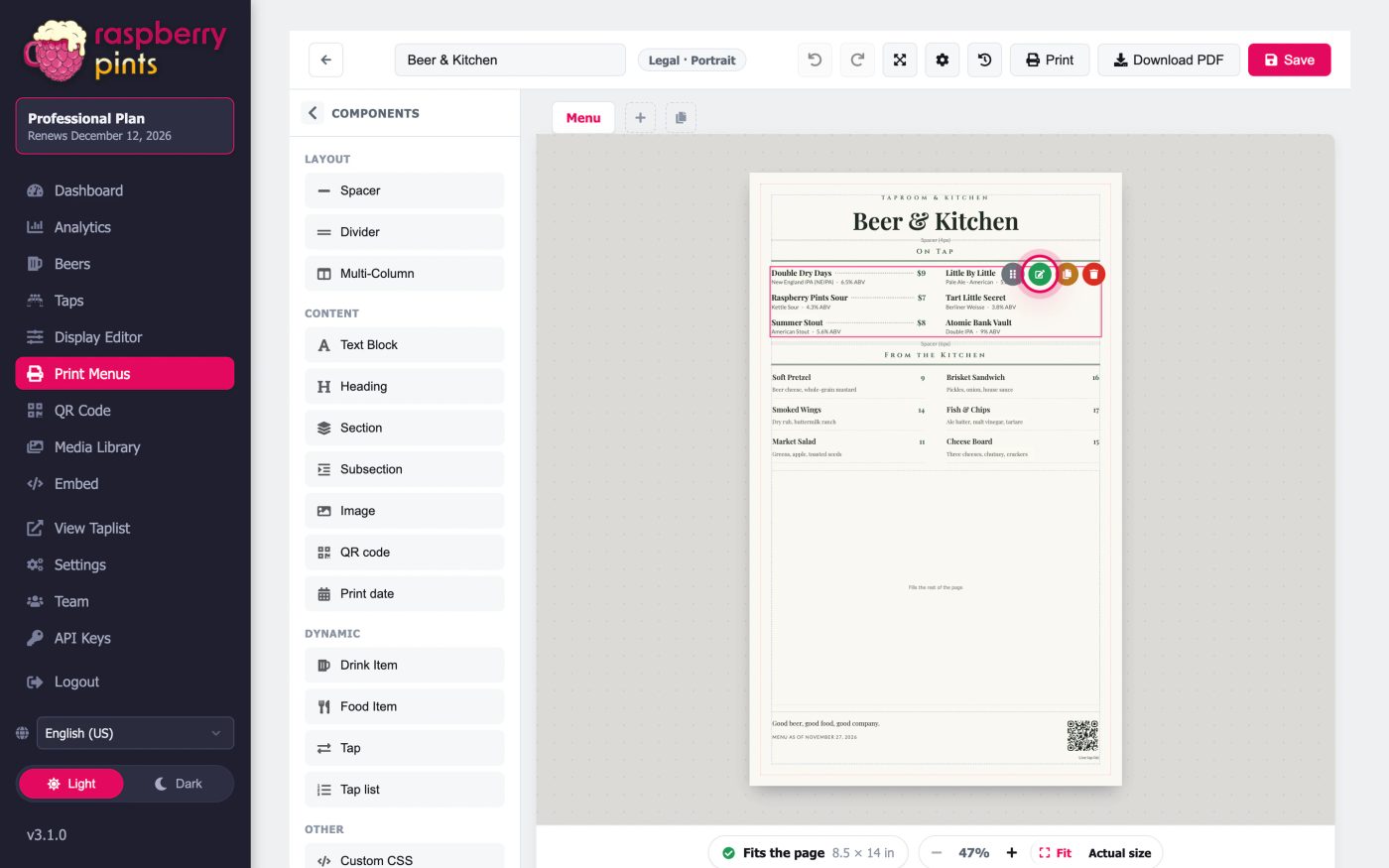
Click Edit properties
The Edit Tap list window opens on Properties. The settings below are all on this tab.
Change the settings and click Save Changes
The page updates as you go. Click Save in the top bar to keep the change.
To add a Tap list to a page, drag Tap list from Components onto it.
Which beers
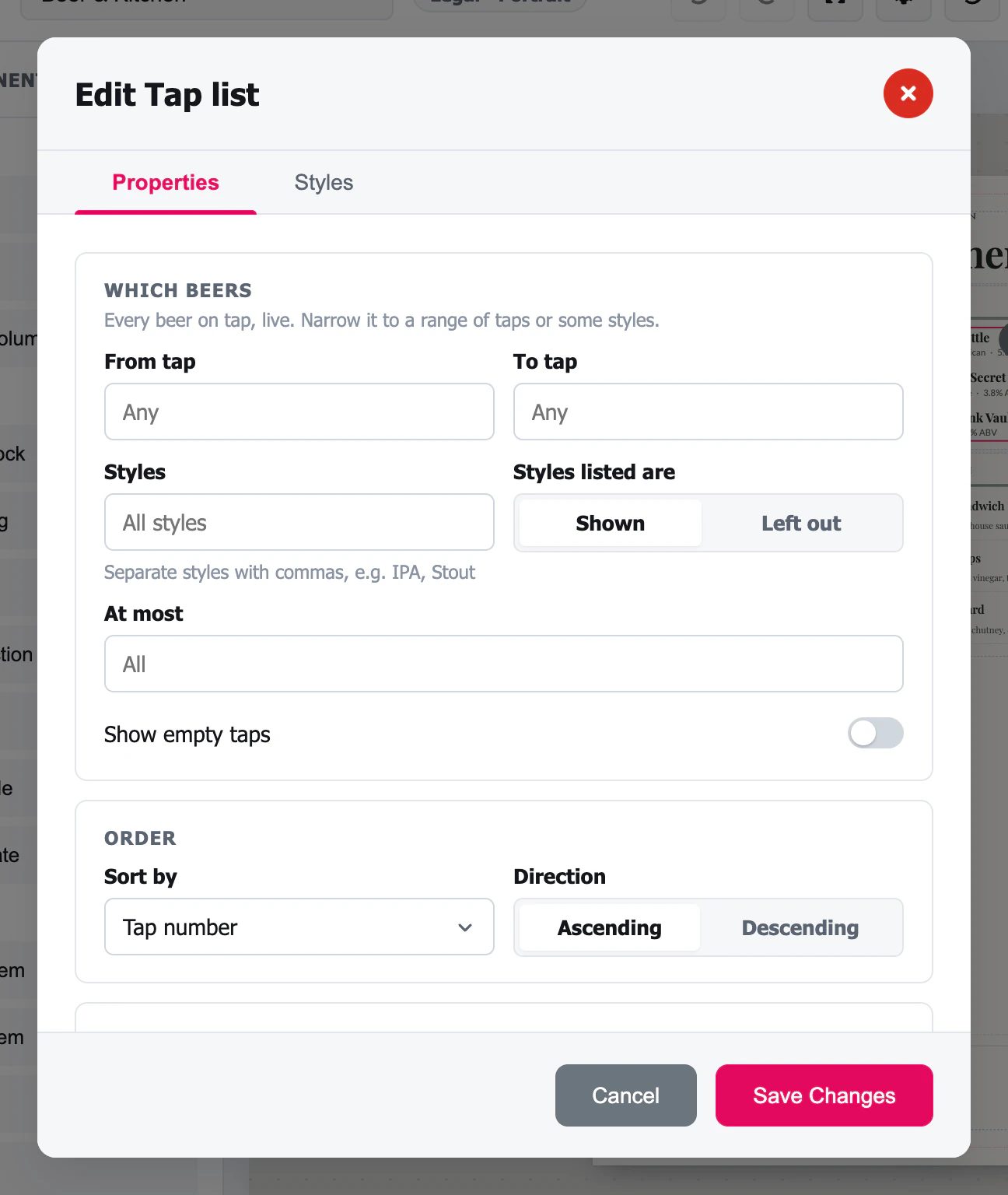
- From tap and To tap show a range of taps, for example taps 1 to 12 on one list and the rest on another. Leave them on Any for every tap.
- Styles shows only some styles, or leaves them out. Type words separated by commas, such as
IPA, Stout. A beer matches when its style contains one of the words, soIPAalso matches "Hazy IPA". Styles listed are sets whether those styles are Shown or Left out. - At most caps how many beers the list shows.
- Show empty taps lists taps with no beer on them.
A Tap list shows taps up to your plan's tap limit, as your public taplist does.
Order
Sort by Tap number, Name, Style or ABV, in Ascending or Descending order.
Layout
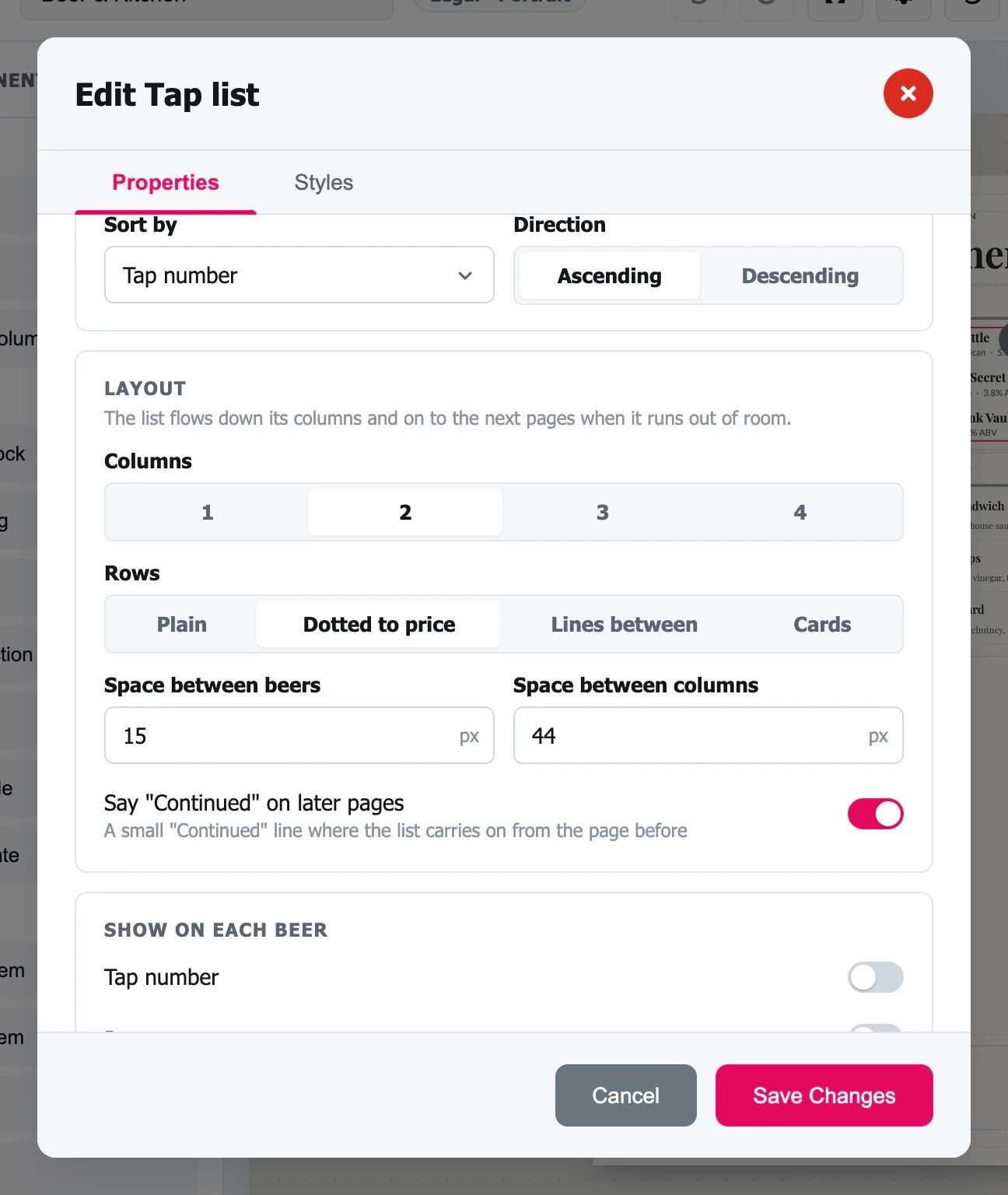
- Columns: one to four.
- Rows: Plain, Dotted to price (a dotted line from the name to the price), Lines between or Cards.
- Space between beers and Space between columns, in pixels.
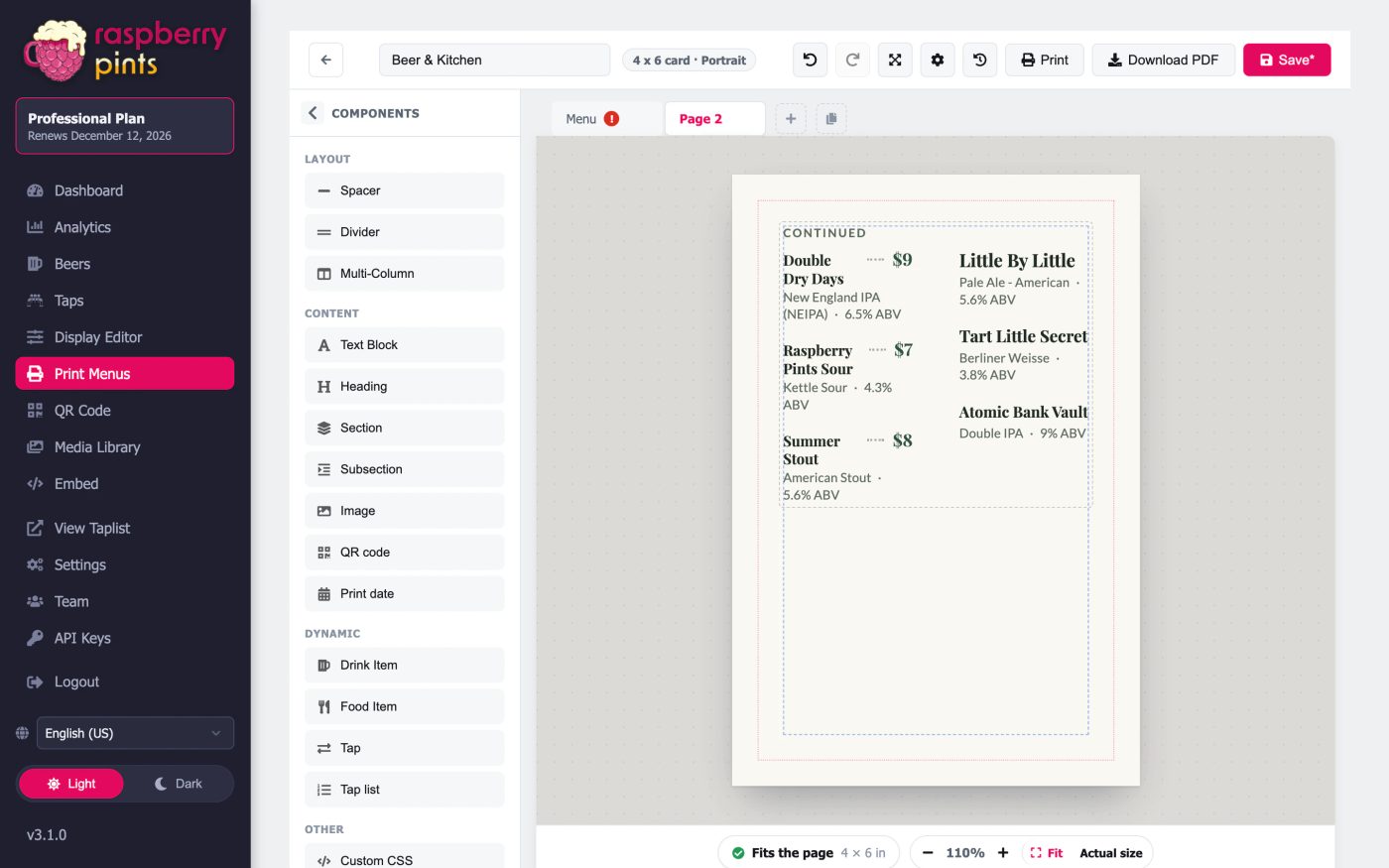
- Say "Continued" on later pages adds a small "Continued" line where the list carries on from the page before. It's on by default.
Show on each beer
Turn on what each row shows: Tap number, Brewery, Style, ABV, IBU, SRM, Price, Description and Beer image. With Description on, Description lines limits how many lines each one gets. With Beer image on, choose its Image shape.
Tick box puts a box by each beer for guests to tick, as on a flight card. The Tasting Flight template uses it.
Text
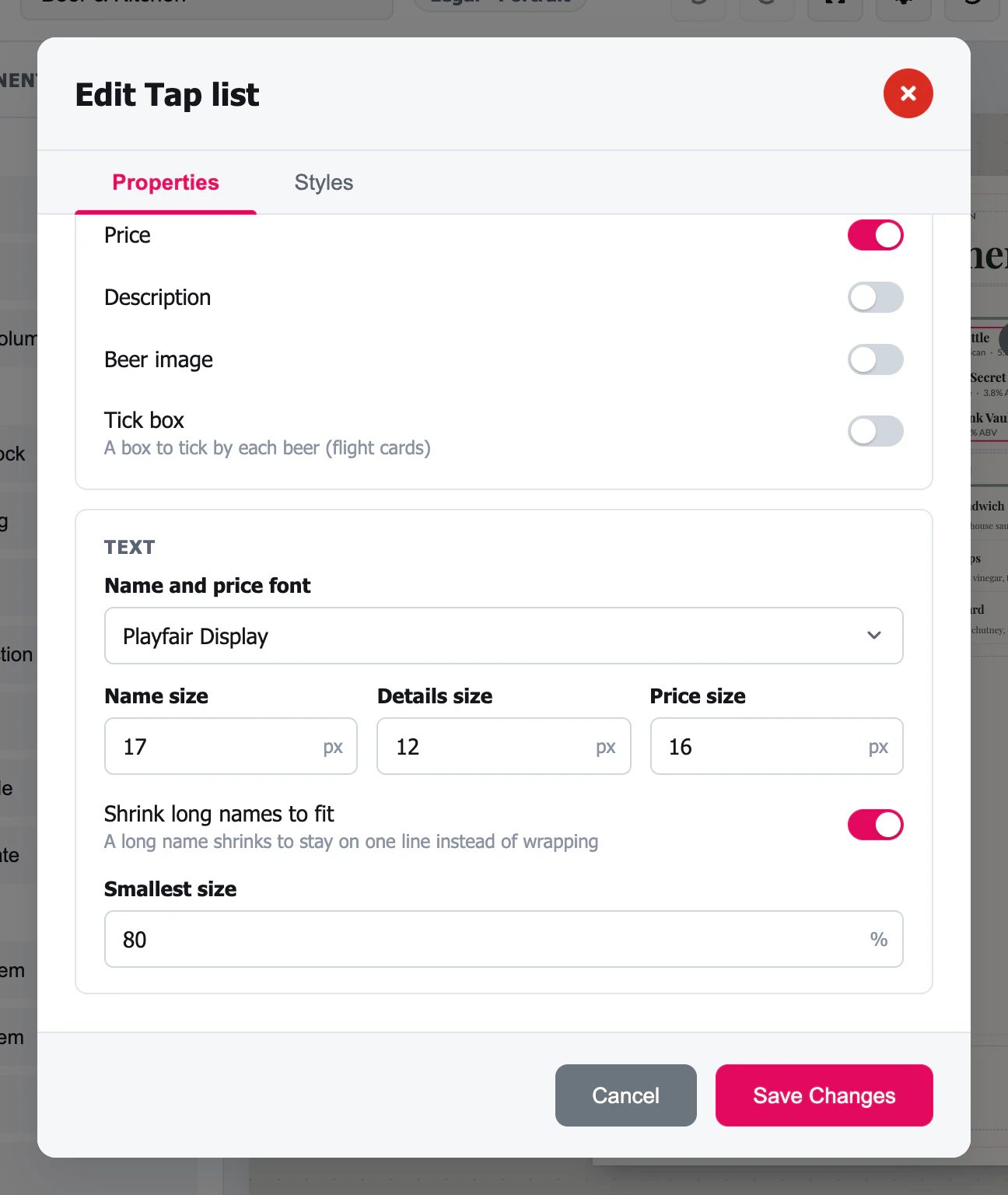
- Name and price font sets the beer names and prices in their own font, while the rest of the menu keeps its font. Same as the menu uses the menu's font.
- Name size, Details size and Price size, in pixels.
- Shrink long names to fit, on by default, makes a long name smaller so it stays on one line. Smallest size is how far it can shrink, as a percentage of the name size. A name that still doesn't fit at that size wraps onto a second line.
How the list fills the page
A Tap list fills the room the other items on its page leave it. Its beers go down the first column, then the next, and the columns are balanced so a short list reads as even columns.
When the beers don't fit, they continue at the top of the next page, before that page's own items, under a "Continued" line. You edit the list on the page where it starts. Point at the continued part to see which page that is.
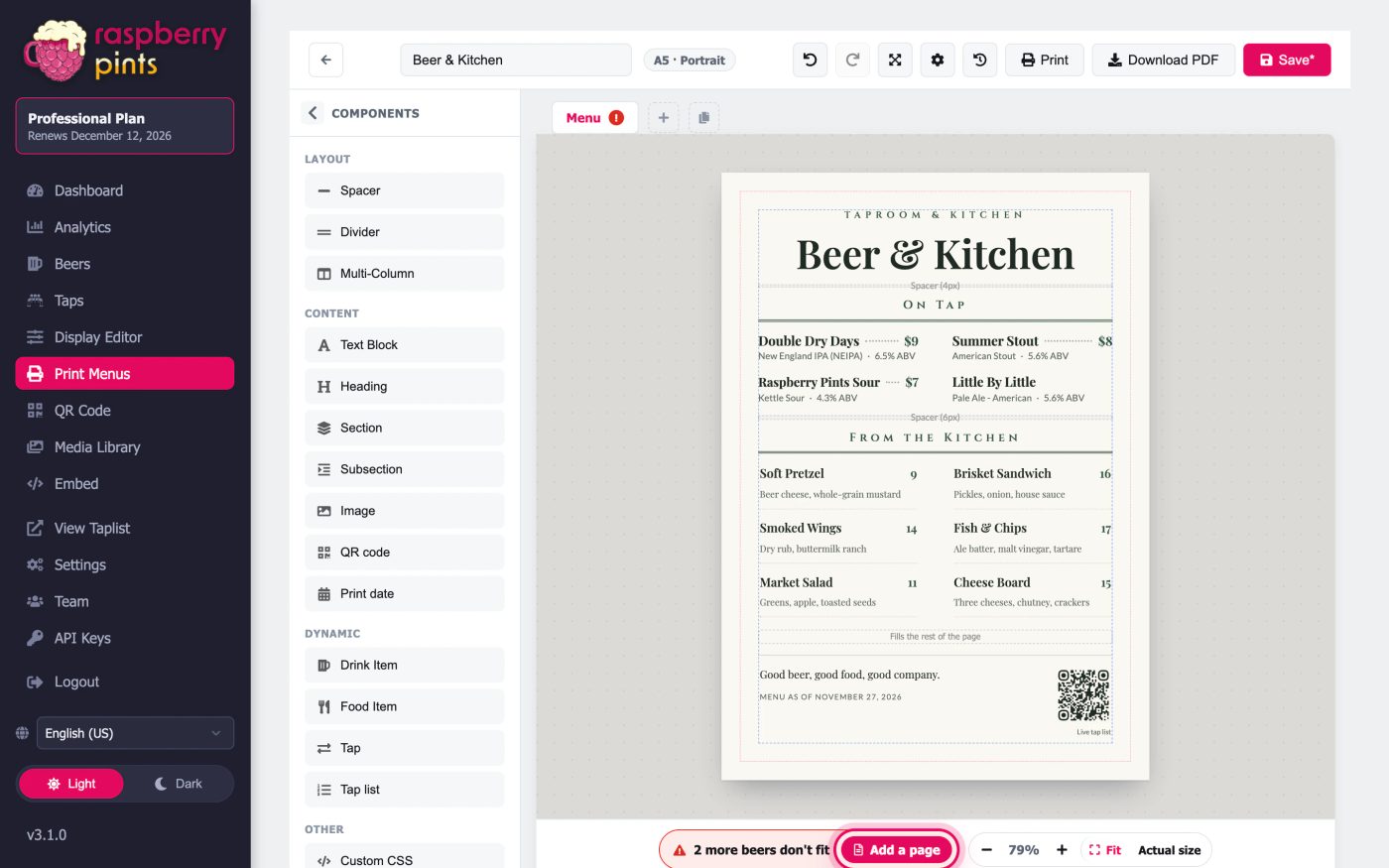
If there's no next page, the bar under the page says how many beers don't fit, such as 2 more beers don't fit, and the page tab gets a red mark. Click Add a page to give them room.
A Tap list inside a column block doesn't flow onto other pages. It spreads its beers across its own columns and stays on its page.
For other ways to make a menu fit, see My print menu doesn't fit or prints cut off.
Was this article helpful?