
Print menu templates and paper sizes
Pick from 11 print menu templates in four looks and eight paper sizes, set the orientation and margins, and fix a page that runs past its bottom margin.
When you make a print menu, you choose the paper first, then a template or a blank page. This article helps you pick both, and shows how to change the paper, orientation and margins later.
Paper sizes
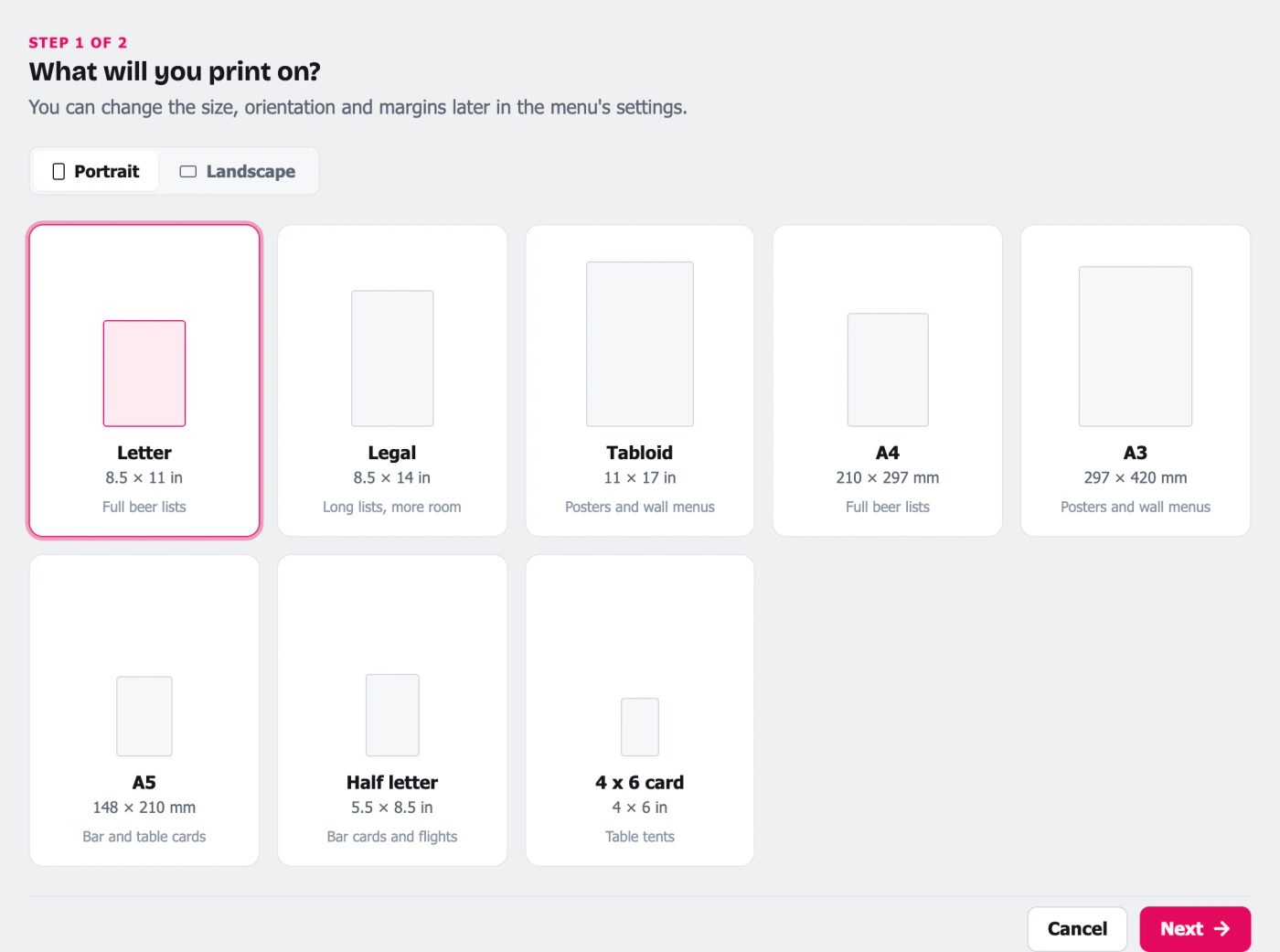
| Paper | Size | Good for |
|---|---|---|
| Letter | 8.5 × 11 in | Full beer lists |
| Legal | 8.5 × 14 in | Long lists, more room |
| Tabloid | 11 × 17 in | Posters and wall menus |
| A4 | 210 × 297 mm | Full beer lists |
| A3 | 297 × 420 mm | Posters and wall menus |
| A5 | 148 × 210 mm | Bar and table cards |
| Half letter | 5.5 × 8.5 in | Bar cards and flights |
| 4 x 6 card | 4 × 6 in | Table tents |
Every size works in Portrait or Landscape.
Templates
There are 11 templates in four looks. Each one is built on a Tap list, so it fits however many beers you pour, and the picker draws each one with your own beers on the paper you chose.
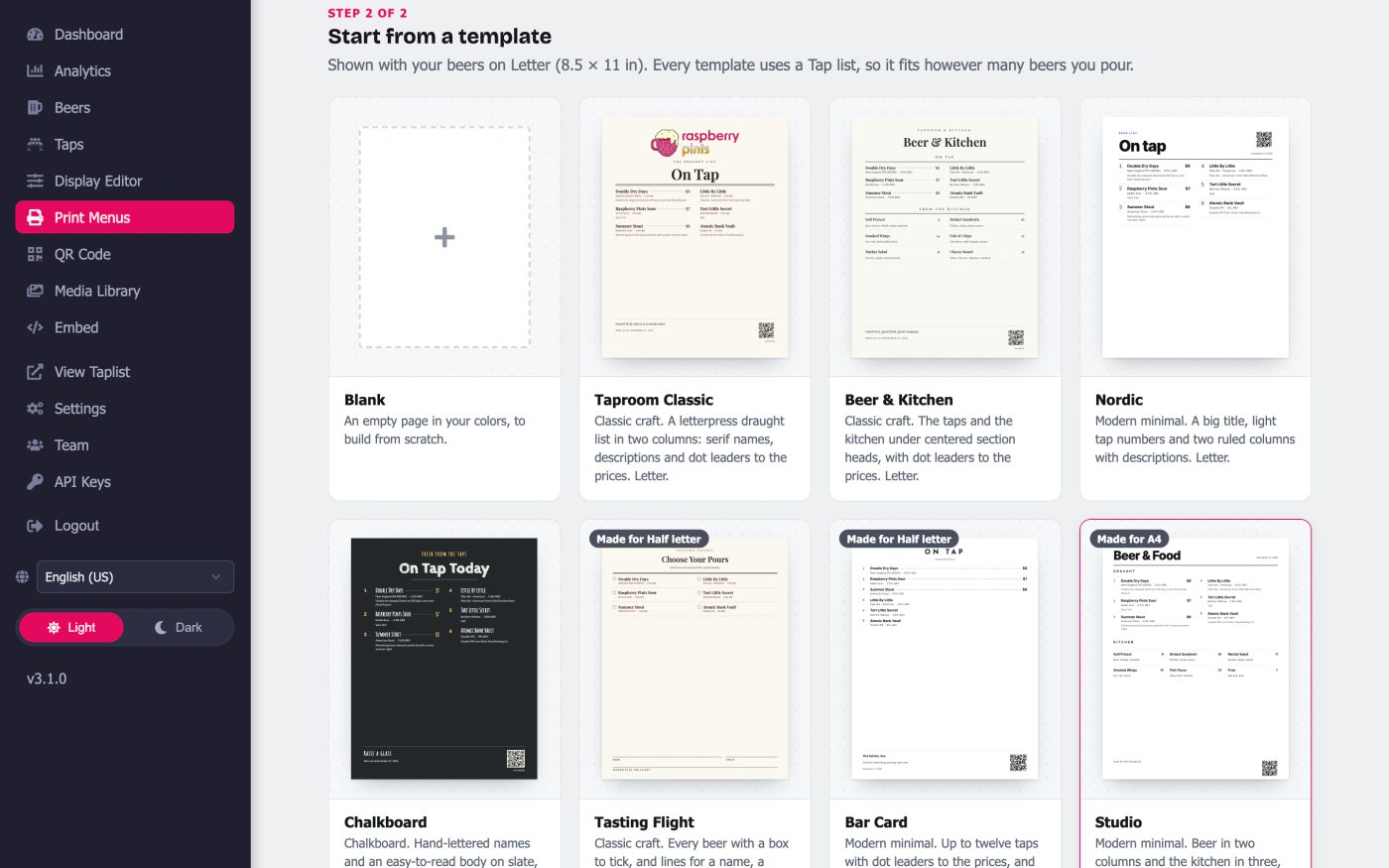
| Template | Look | Made for | Suits |
|---|---|---|---|
| Taproom Classic | Classic craft | Letter | A full draught list in two columns, with descriptions and dot leaders to the prices |
| Beer & Kitchen | Classic craft | Letter | Your taps and your kitchen, under centered section heads |
| Tasting Flight | Classic craft | Half letter | A flight card: a box to tick by each beer, and lines for a name, a table and a favorite |
| Nordic | Modern minimal | Letter | A full list in two ruled columns, with descriptions |
| Bar Card | Modern minimal | Half letter | Up to twelve taps on the bar, and a QR code for the rest |
| Studio | Modern minimal | A4 | Beer in two columns and food in three |
| Wall Poster | Bold and graphic | Tabloid | A wall menu in full-bleed color, every beer in three columns |
| Happy Hour | Bold and graphic | Half letter, landscape | Happy hour or specials, with the hours in a color block |
| Table Tent | Bold and graphic | 4 x 6 card | Six beers in big type beside a large QR code |
| Chalkboard | Chalkboard | Letter | A full list on a slate background |
| Specials Board | Chalkboard | Half letter | Four featured pours and the day's deals on a green board |
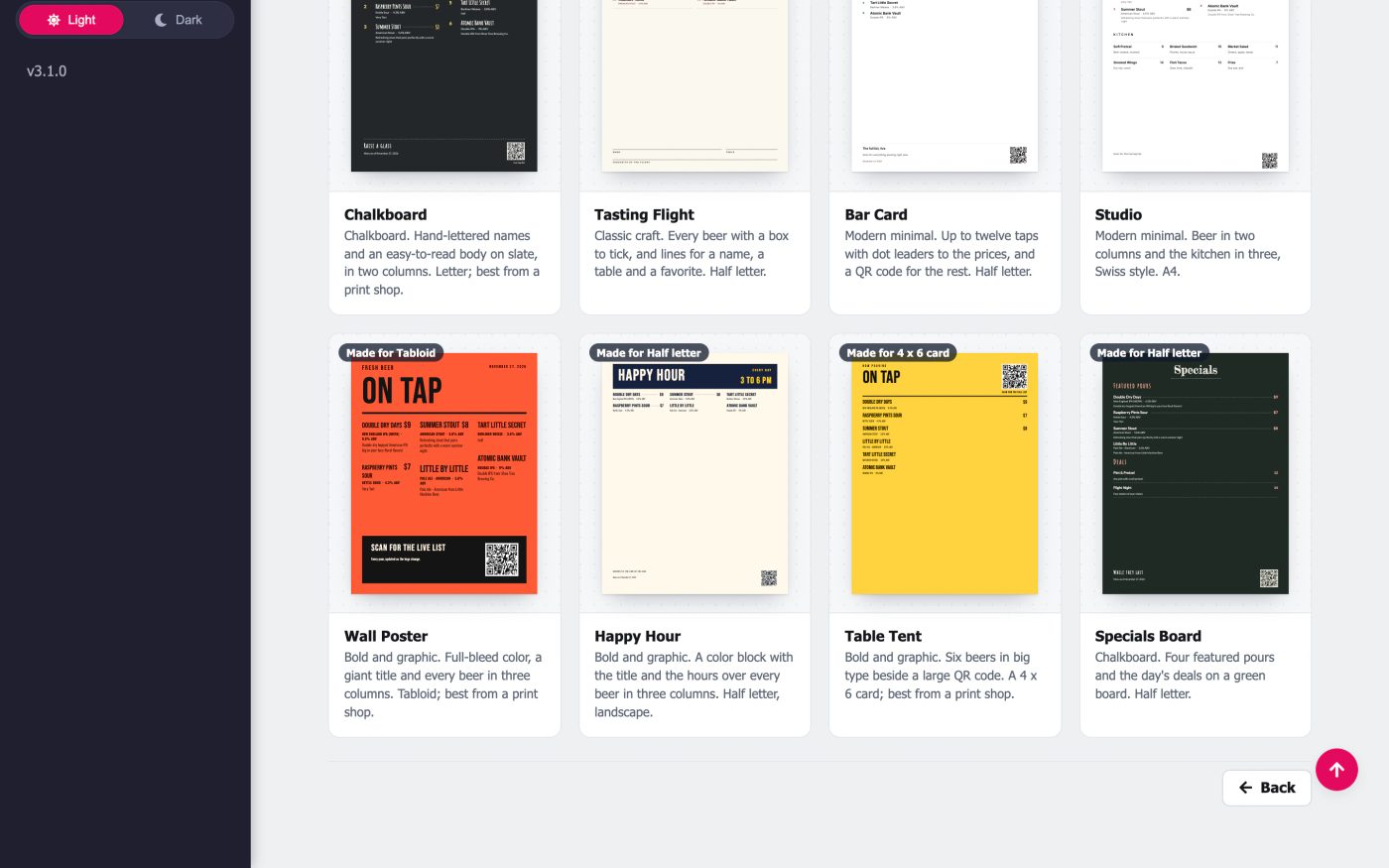
You can use any template on any paper. Templates made for the paper you chose come first. The others show a badge such as Made for Half letter, and they start with your paper's usual margins. Check that they fit before you print.
Blank is an empty page in your colors, for building a menu from scratch.
Home printer or print shop
The Letter templates other than Chalkboard are pale paper and dark type, so they print well at home or in the office. Wall Poster, Table Tent and Chalkboard are dark or full-color to the edge of the paper. Most printers can't print right to the edge of the paper, so these are best printed at a print shop. Send the shop a PDF from Download PDF.
Change the paper, orientation or margins
Open the menu and click Global Styles
It's the gear button in the top bar. The Global Menu Styles panel opens.
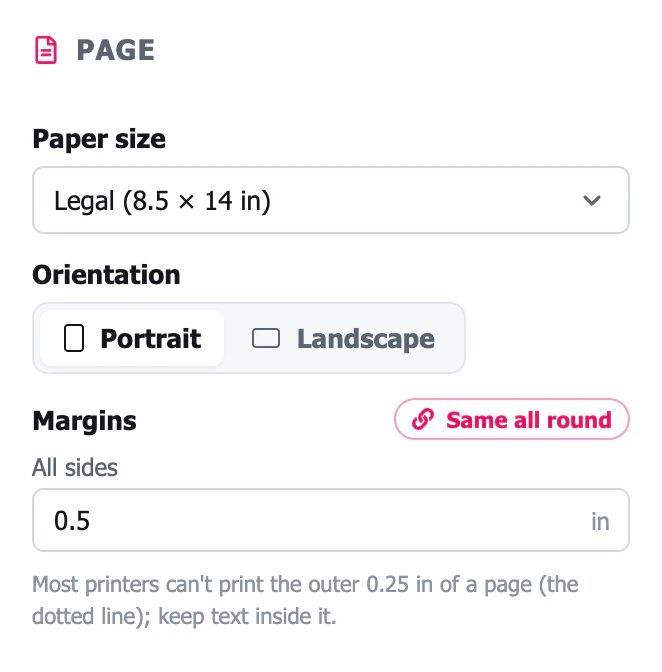
Change the settings under Page
- Paper size and Orientation.
- Margins: one value for All sides, or click Same all round to switch to Each side and set Top, Right, Bottom and Left on their own.
Margins are in inches for US paper and in millimeters for A sizes. A new menu starts with half-inch margins, a little less on half letter, A5 and 4 x 6 cards. A margin can be up to 2 in (51 mm).
Click Save
Check that every page still fits first (below).
The page in the editor shows your margins as a dashed line. A dotted line marks the outer 0.25 in (6 mm) of the paper: most printers can't print there, so keep text inside it.
When a page doesn't fit
Nothing on a print menu shrinks to fit. When a page is too long, the bar under the page says how far it runs past the bottom margin, the part that won't print is marked Not printed, and the page tab gets a red mark.
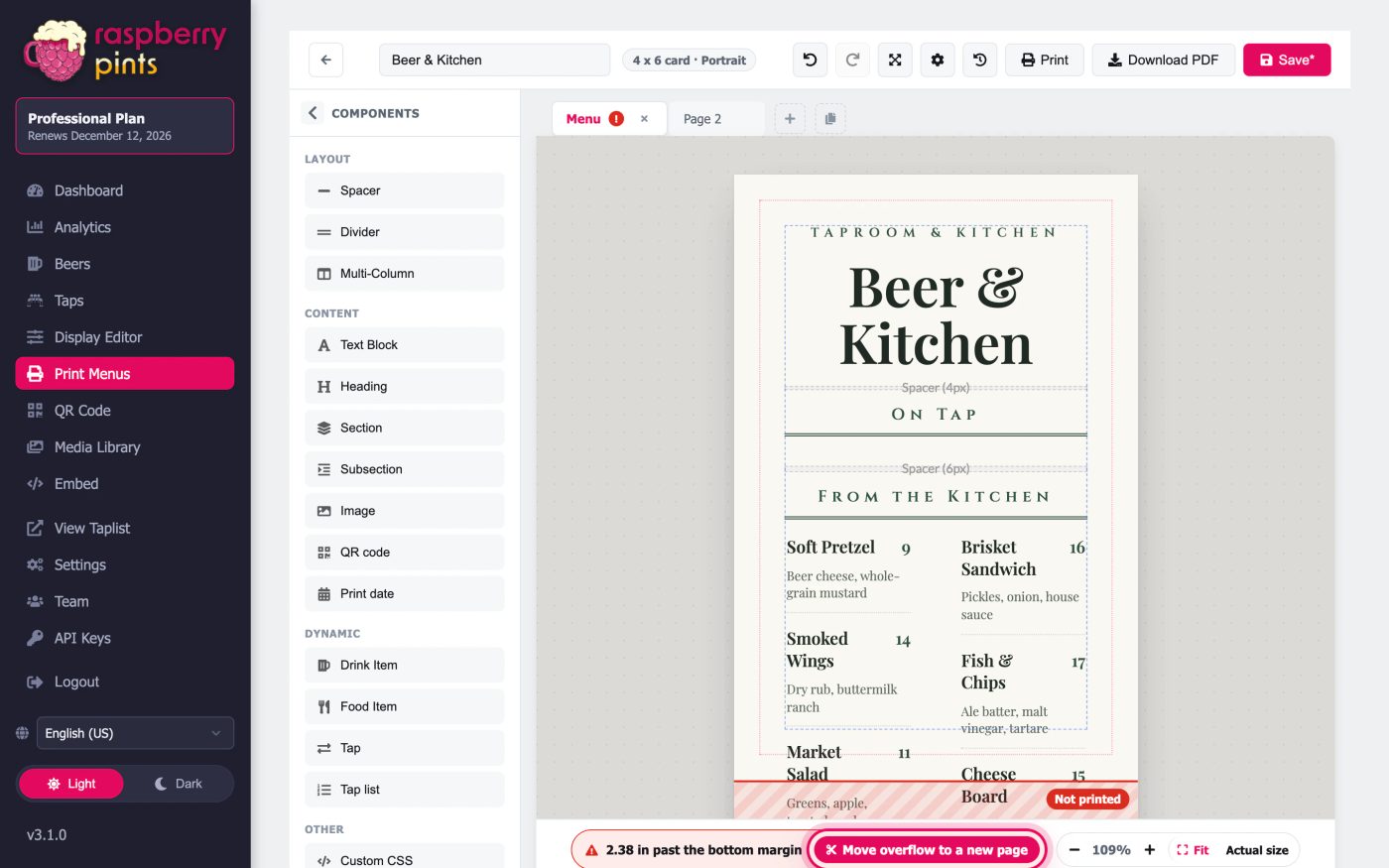
- Move overflow to a new page moves the first item that doesn't fit, and everything after it, onto a new page after this one.
- If beers from a Tap list are left over, the bar says how many don't fit instead. Click Add a page to give them room.
You can also make room by choosing larger paper, smaller margins, more columns in the Tap list, or smaller text. See My print menu doesn't fit or prints cut off.
Was this article helpful?